 StartEase
Employer guide: setup, every payroll, and every year
The standard procedure for an employer after the invitation: what to set up once, what you do on every payroll, and what to watch each month and each year. Your StartEase payroll team does the rest.
This guide follows your account from the first email to the year-end W-2. Each step says who does it, where in the menu, and what a good result looks like.
| Who | Does |
|---|---|
| You Employer | Confirms your company details and state registrations, adds your people, approves each payroll, and (if you deposit yourself) pays the government. |
| StartEase Payroll team | Prepares each payroll, sends it for your approval, files and deposits as your agent when you choose that, reads agency notices. |
| Employee | Fills in their own details, W-4 and I-9 Section 1, and sees their own pay stubs. |
Part 1. Once: after your invitation
Step 1. Accept the invitation and sign in
Who: you. When: the day you receive the email.
- Open the invitation email and select the link. Choose a password of at least 12 characters. (What the email looks like)
- Sign in at payroll.starteaseai.com/app.
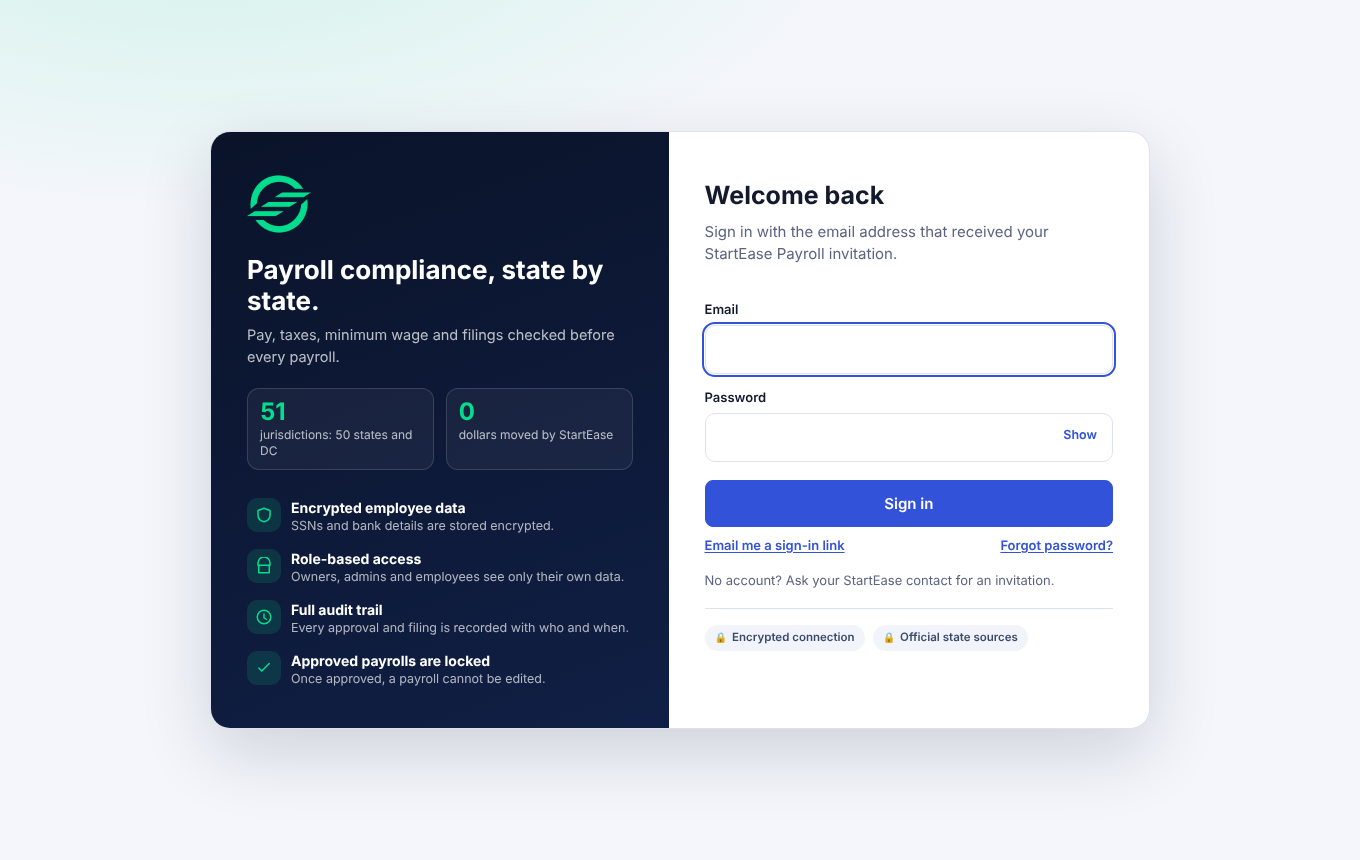
More detail: Sign in, reset your password, and stay signed in. Good result: you see your company name and your dashboard.
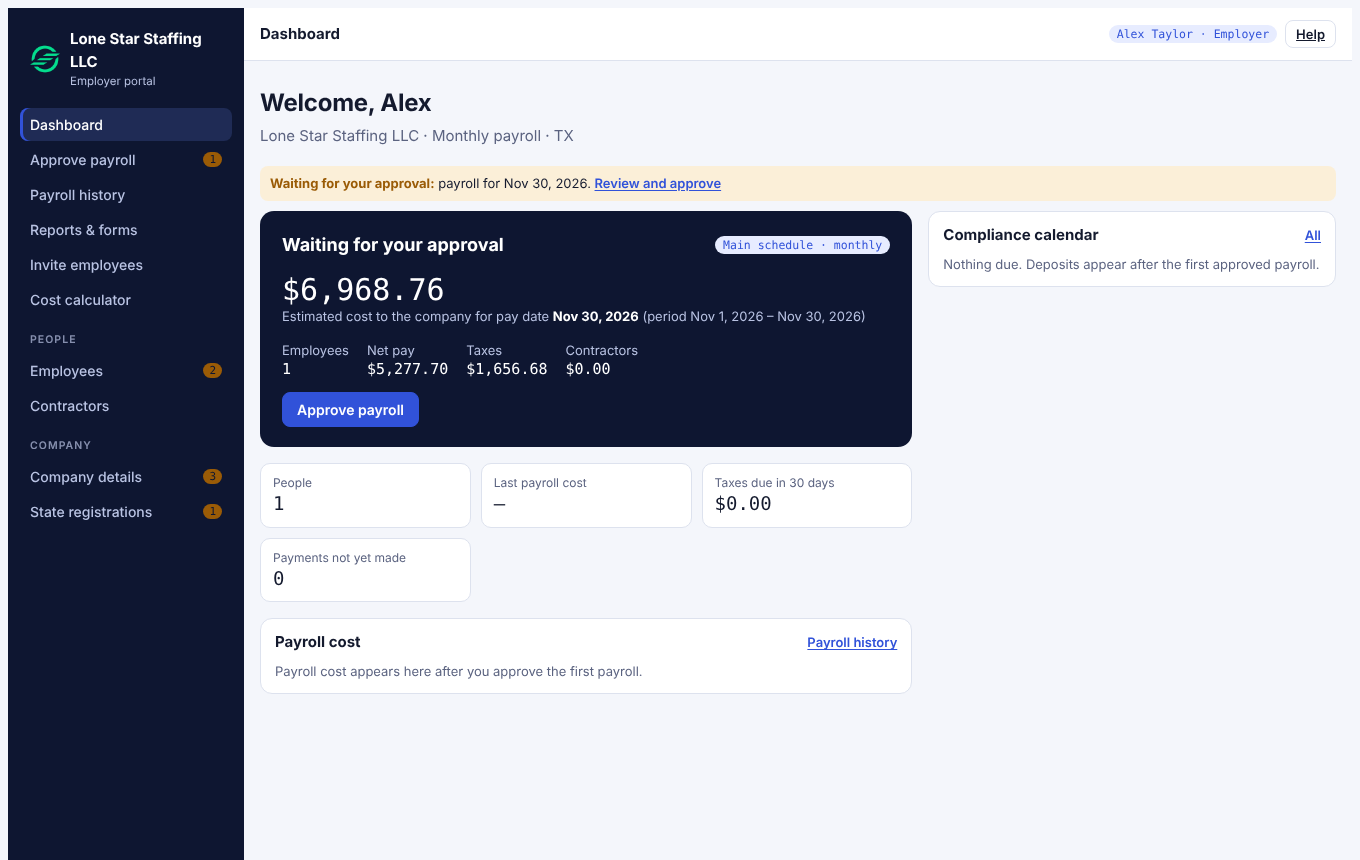
Step 2. Check your company details
Who: you, with your payroll team. Where: Company details. When: before the first payroll.
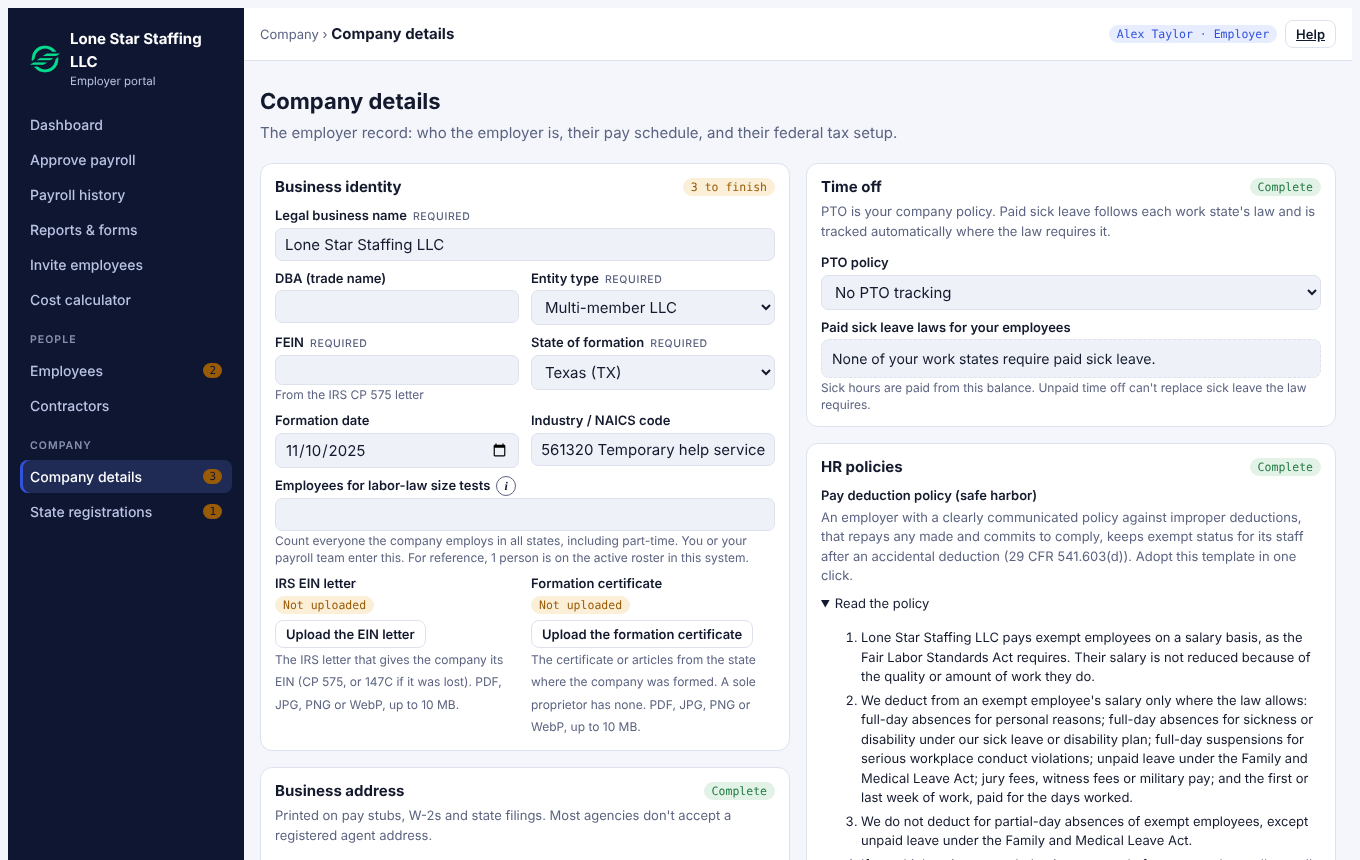
- Business identity: legal name, entity type, FEIN, state of formation. Upload the IRS EIN letter and, unless you are a sole proprietor, the formation certificate.
- Business address and the Signatory (the person who signs tax forms): enter their full name and title. Then confirm your authority (see below).
- Pay schedules: how often you pay, the first pay date and the end of the first pay period. Answer Paid wages earlier this year? honestly: Yes means your payroll team enters each person's totals so far.
- Federal tax setup: who makes the federal tax deposits. Choose StartEase, as your authorized agent (you sign IRS Form 8655) or You. StartEase never asks for your EFTPS PIN or password.
Confirm your authority. The first time you open Company details, a pop-up asks you to confirm that you are authorized to act for the company. Read the declaration, tick I have read this declaration and I agree to it, and select I Agree & Confirm. StartEase records your name, your role and the date.
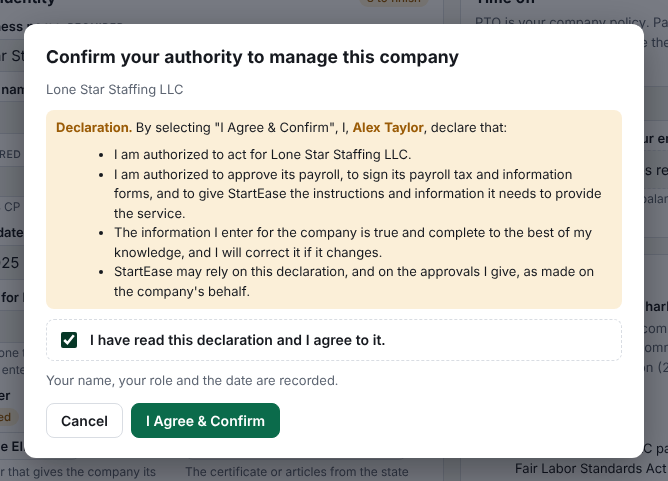
- If you close the pop-up, the Signatory card shows Not confirmed and a Confirm authority button. Select it when you are ready.
- Someone who manages the company for you, such as your payroll team or your CPA, can also confirm, in their own name. Each confirmation shows who gave it and when.
- Employees cannot confirm. Changing the signatory's name or title does not remove a confirmation.
Good result: every card says Complete and the Signatory card shows your confirmation. You can type your FEIN once; it is stored encrypted.
Step 3. Register in each state and enter the unemployment rate
Who: you and your payroll team. Where: State registrations. When: before the first payroll in that state.
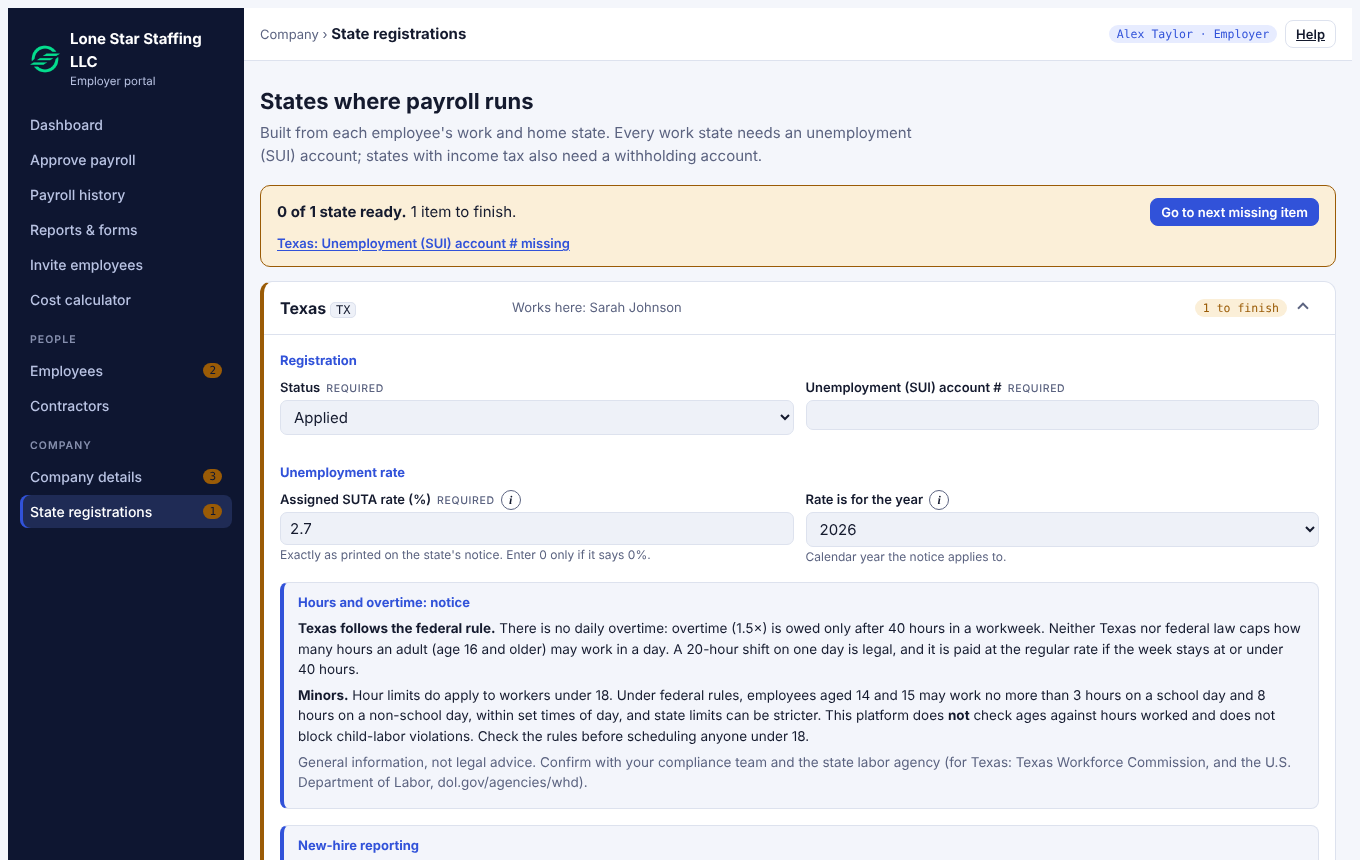
For each state set the status (Not started, Applied, Registered) and enter the account numbers. Enter your state unemployment rate exactly as printed on the state's notice, with the year it is for. A payroll cannot be approved without it. See Send your state unemployment (SUTA) rate notice.
Step 4. Add your people
Who: you or your payroll team. Where: Employees and Contractors.
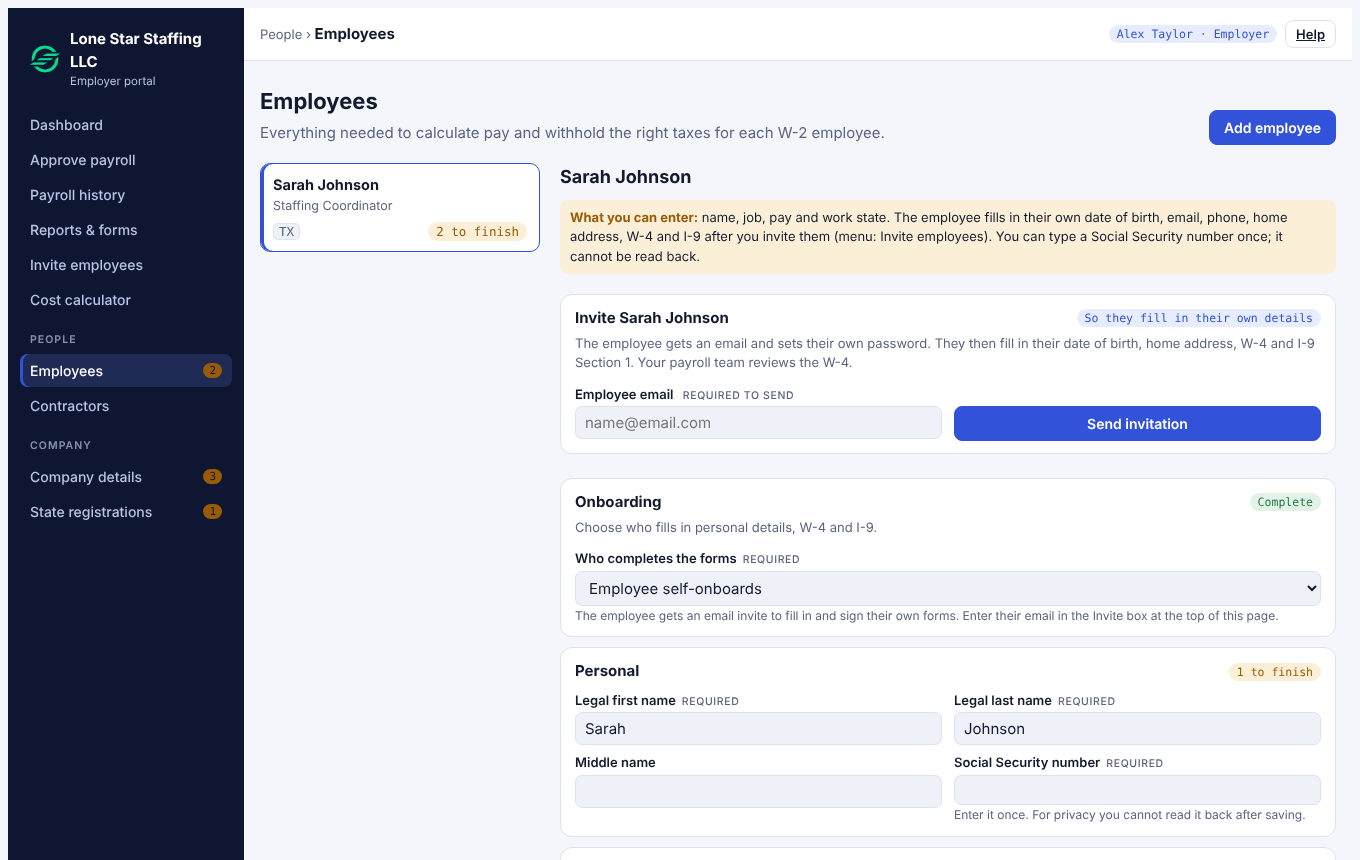
- Employee: name, hire date, job title, work state, pay type and rate. You can type a Social Security number once; it cannot be read back. The employee fills in the rest: date of birth, home address, W-4 and I-9 Section 1.
- Contractor: contact details and the tax form (W-9 or W-8). You can type the tax ID once.
To send a job offer in writing, see Send an offer letter to a new employee. To remove someone, ask your payroll team.
Step 5. Invite your employees
Who: you. Where: Invite employees.
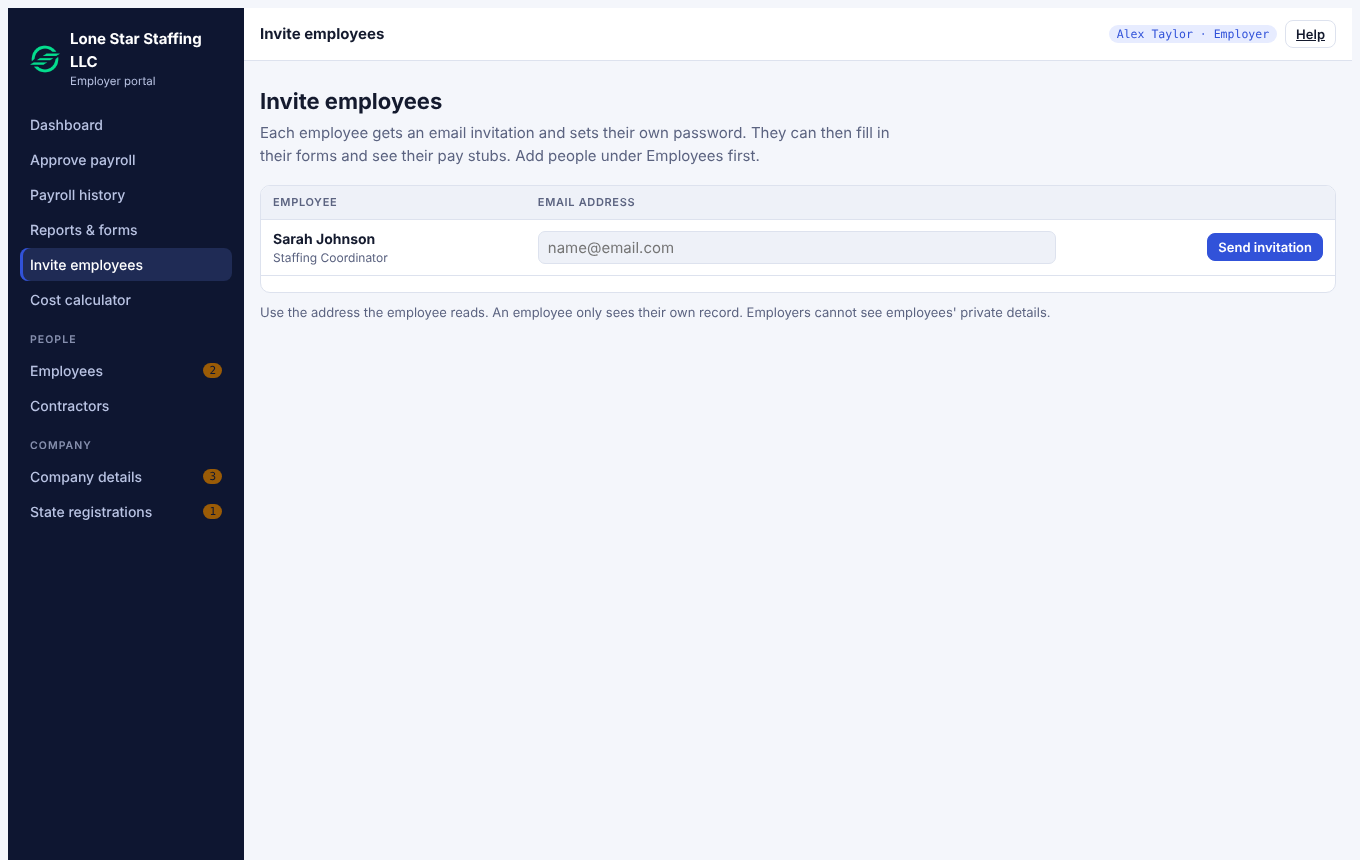
Use the address the employee actually reads. They get an email and set their own password. What they do next: Employee guide. Good result: you see Invitation sent. If an email already has an account you get a clear error.
Part 2. Every payroll
- Payroll team prepares the payroll and sends it to you. You get an email: Payroll waiting for your approval.
- You open Approve payroll and check the totals and each person's pay.
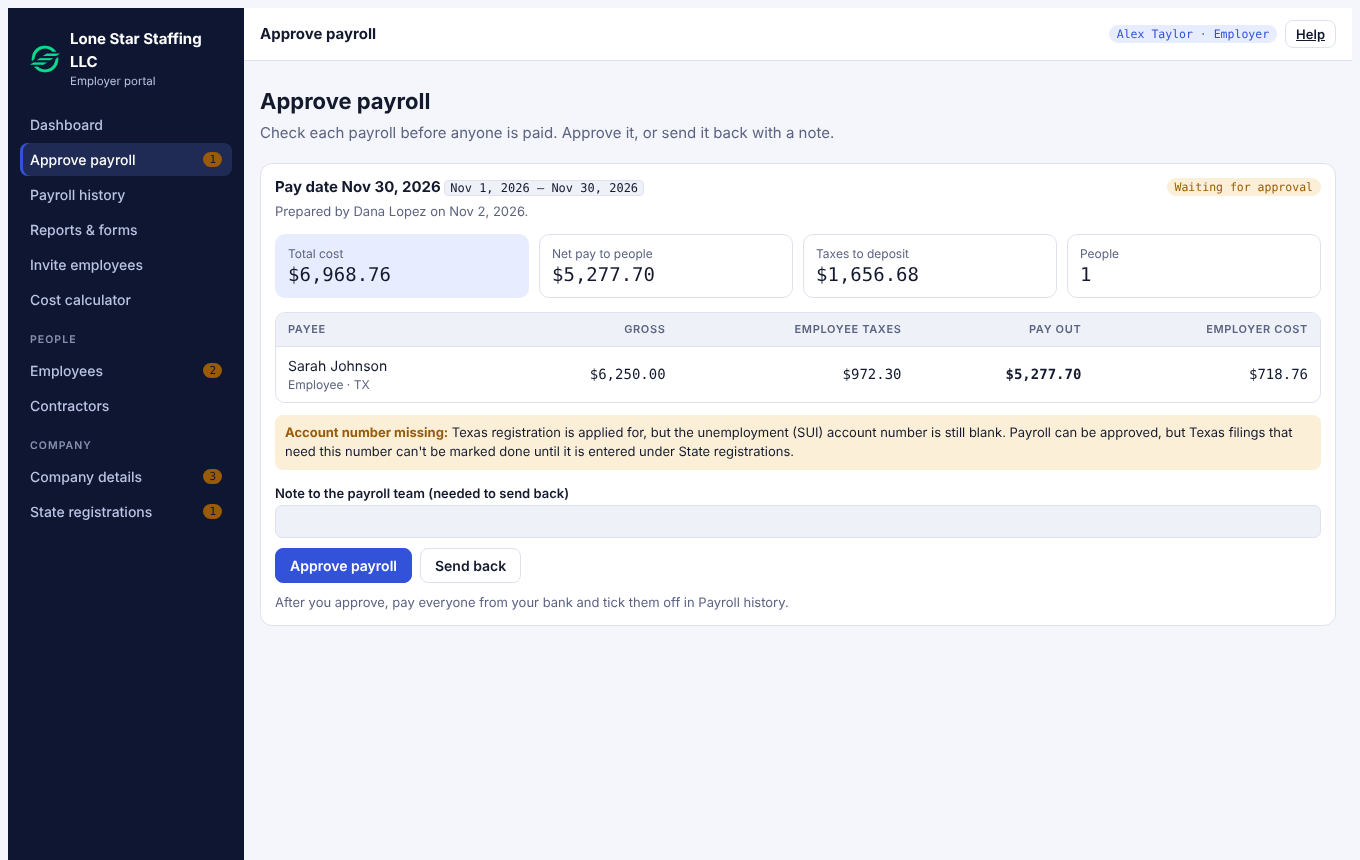
- Approve to lock it, or Send back with a note. The payroll team gets an email either way.
- If a red message appears instead, StartEase found a problem the law would not allow. Each message says what to fix: Why can't I approve my payroll?
- Pay your people from your own bank, then open Payroll history and mark each person paid.
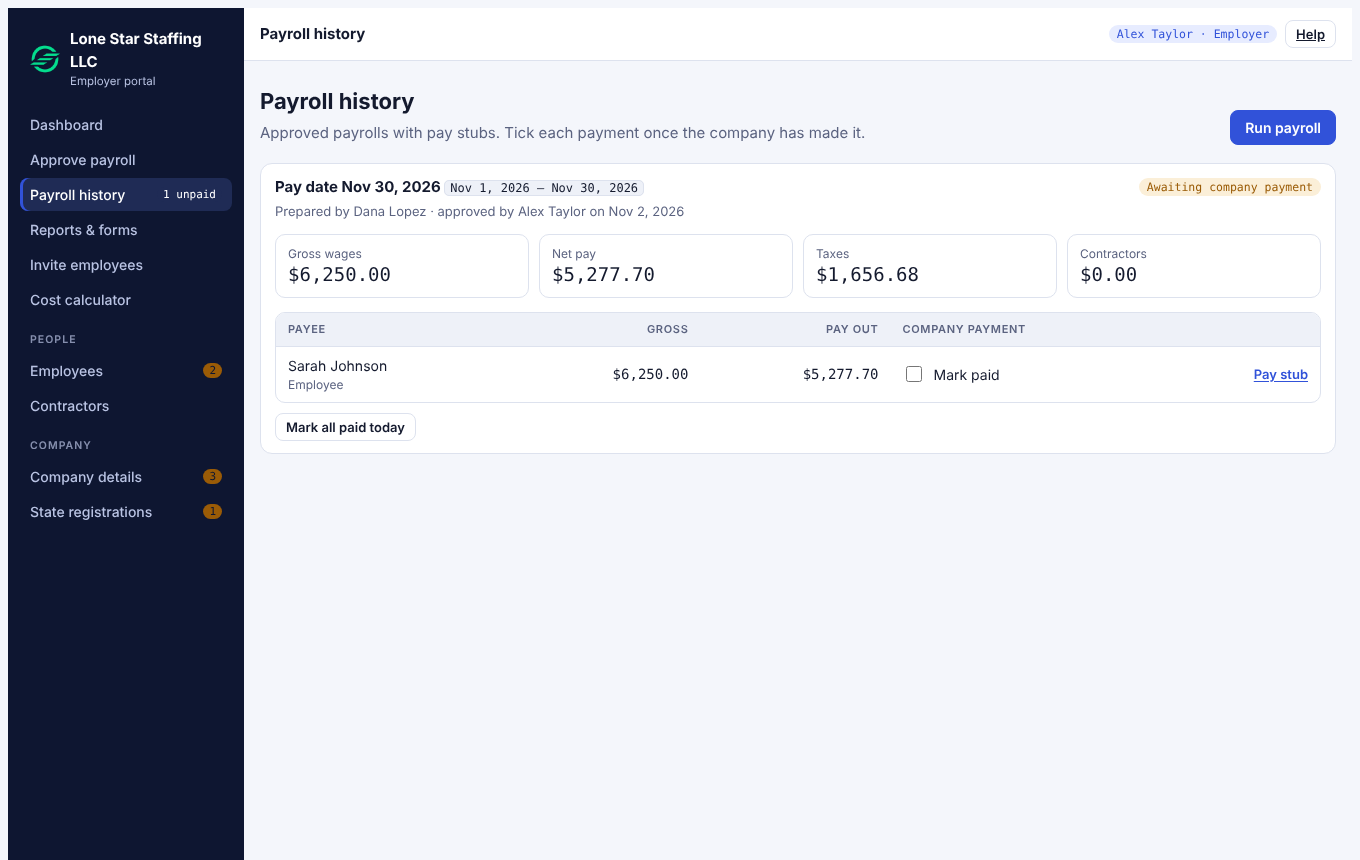
Each employee gets an email when their pay stub is ready. Details: Approve a payroll and mark people paid.
Part 3. Every month, quarter and year
| When | What | Where |
|---|---|---|
| After each payroll | Federal tax deposit. If StartEase is your agent it deposits for you; otherwise you deposit and record the confirmation number. | Reports & forms |
| Each quarter | Form 941 and the state unemployment report are prepared and filed, then recorded. | Reports & forms |
| January | Form W-2 to employees and Form W-3 to the Social Security Administration, Form 940, and Form 1099-NEC for contractors, by January 31. | Reports & forms |
| Each December and when a state sends a notice | Send the new unemployment rate notice so next year's payrolls are not blocked. | State registrations |
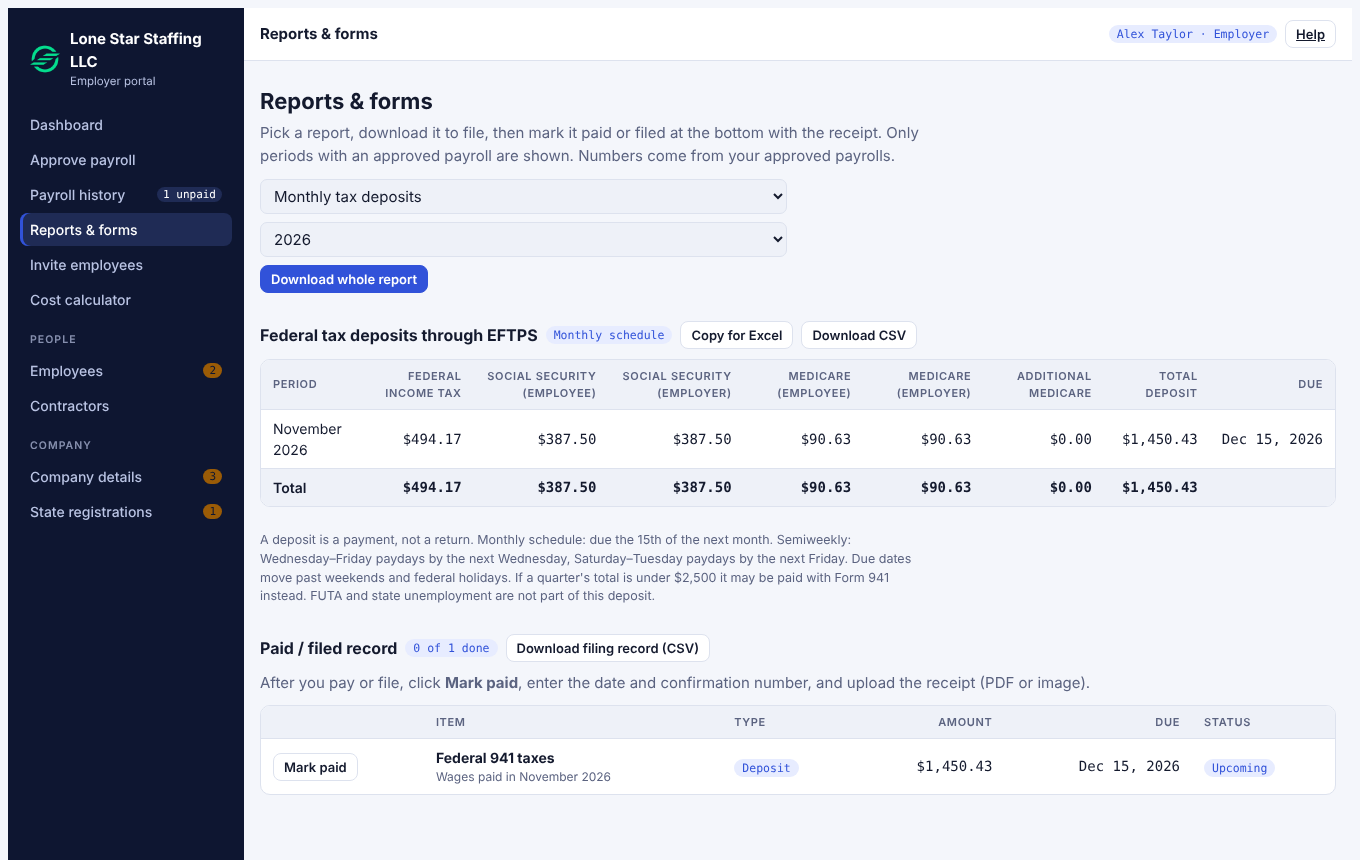
More detail: Reports & forms, Federal tax deposits and Form 941, FUTA and Form 940, Get your Form W-2, Form W-2 and Form W-3 for employers, Form 1099-NEC, Form 8655.
Part 4. When something changes
| What happened | What you do |
|---|---|
| You hire someone | Add them under Employees and invite them the same day. Their I-9 Section 1 is due by their first day and Section 2 within 3 business days. You get reminders. |
| Someone leaves | Tell your payroll team the last day worked. Their last paycheck is cut to the days worked, and unused PTO is paid where state law requires it. |
| An employee has no W-4 | Your payroll team ticks No valid W-4 received. Federal tax is then withheld as for a single filer with no adjustments until they give one. |
| An agency sends a notice | Forward it to your payroll team. They read it and compare it with the rate in your payroll. |
| Your address, pay schedule or state registration changes | Update it under Company details or State registrations before the next payroll. |
Emails you will get
- Payroll waiting for your approval, and a reminder if it waits.
- Payroll withdrawn (no action needed).
- Form I-9 Section 2 due or overdue.
- W-2 and W-3 due or overdue.
- A state unemployment rate needed, a temporary rate ending, a state registration not finished.
- Your password was changed, or a new sign-in from a new browser or device.
Checklist
- ☐ Invitation accepted, signed in
- ☐ Company details complete, EIN letter and formation certificate uploaded
- ☐ Federal tax setup and who deposits chosen
- ☐ State registered and unemployment rate entered
- ☐ People added and employees invited
- ☐ First payroll approved and everyone marked paid