 StartEase
Send an offer letter to a new employee
Write the offer on the employee record, preview or print it, send it, and see when the employee accepts.
The offer letter is part of the employee record. Pay, job title, start date and work location come from the record, so the letter always matches what you pay. You add the reply date, the duties and any other terms. The employee reads the letter and accepts it in their own sign-in.
Who: you or your payroll team. Where: Employees, then select the person, then the Offer letter section.
Step 1. Complete the employee record first
The letter uses these fields from the record: first name, job title, hire date (the start date), pay rate, pay type, overtime status (FLSA) and work state (unless the person works remotely). If one is missing, Send to the employee shows Fill in the … and names the field.
Step 2. Write the offer
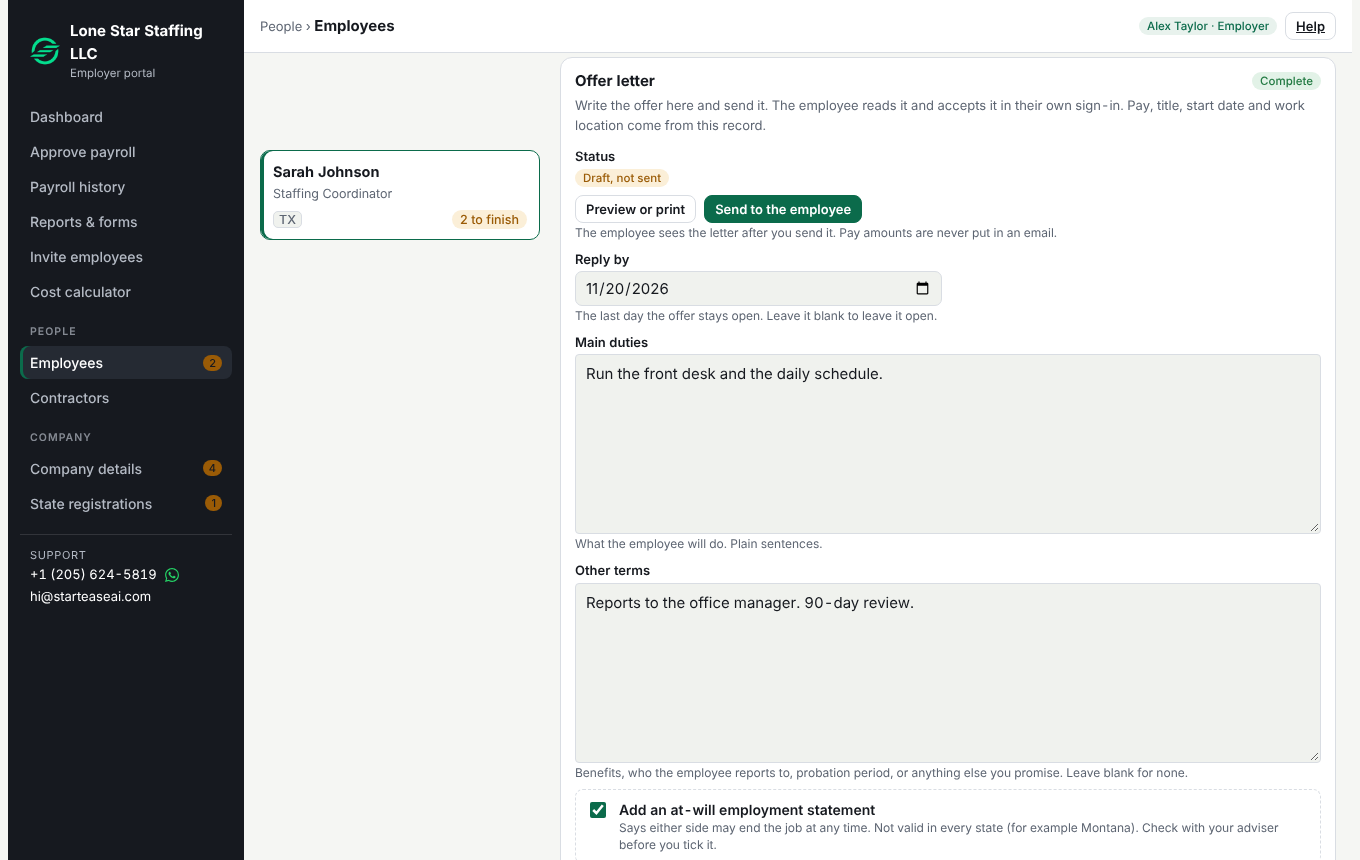
- Reply by: the last day the offer stays open. Leave it blank to leave it open.
- Main duties: what the employee will do, in plain sentences.
- Other terms: benefits, who the employee reports to, a probation period, or anything else you promise. Leave it blank for none.
- Add an at-will employment statement: tick this to say either side may end the job at any time. It is not valid in every state (for example Montana). Check with your adviser before you tick it.
- Make the offer depend on Form I-9 and Form W-4: tick this to say the offer depends on the employee completing Form W-4 and Section 1 of Form I-9 by their first day of work, and showing their I-9 documents within 3 business days of starting.
Your changes are saved with the record.
Step 3. Preview or print
Select Preview or print. The letter opens on its own page, with your company name and address at the top. To keep a copy, use your browser's Print command and choose Save as PDF.
The letter has these parts: position and start date, compensation, duties, other terms, employment status (if ticked), conditions (if ticked), and an acceptance box for the company and one for the employee.
Step 4. Send it
- Select Send to the employee.
- The status changes to Sent with the date, waiting for the employee.
- Tell the employee to sign in at payroll.starteaseai.com/app. StartEase does not send an email about the offer yet, so tell them yourself.
Once sent, the offer fields lock so the employee always sees the letter you sent.
Step 5. See the reply
When the employee accepts, the status reads Accepted with the date, and the letter shows their name and the date in the employee box. In Users & roles (payroll team), an employee who has not accepted shows the next step Still to do: offer letter.
Change an offer you already sent
Select Withdraw to edit. The fields unlock, and the sent date and any acceptance are cleared. Edit the letter, then send it again.