 StartEase
Help / Employees
Read and accept your offer letter
Where to find the offer letter your employer sent, what it says, and how to accept it.
Your employer can send you a written job offer through StartEase Payroll. It does not arrive by email with your pay in it. You read it after you sign in, in My profile.
Step 1. Open your offer letter
- Sign in at payroll.starteaseai.com/app. (Sign in, reset your password, and stay signed in)
- Open My profile. The card Your offer letter is at the top, with the status Waiting for your reply.
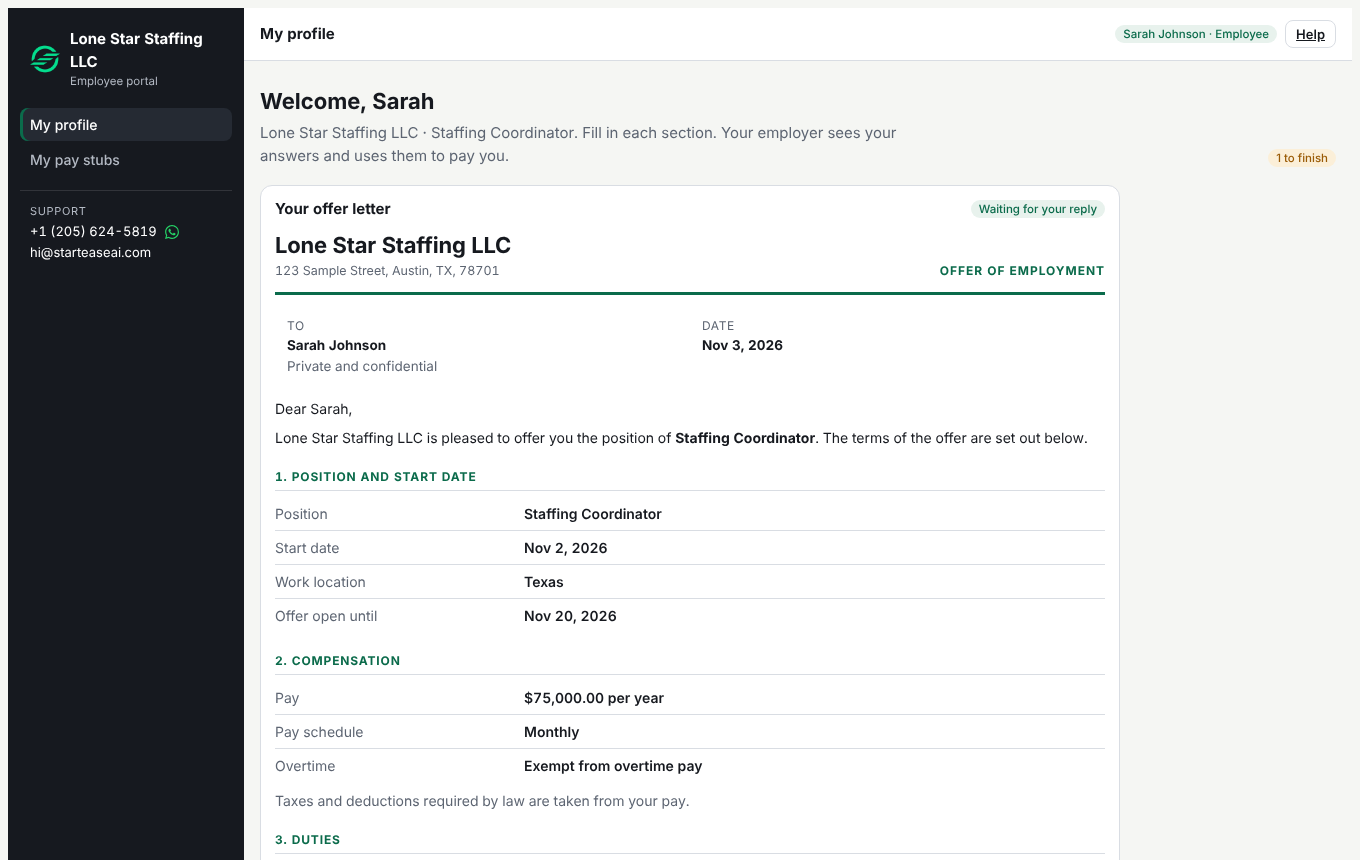
If you do not see the card, your employer has not sent the offer yet. Ask them to send it.
Step 2. Read it
The letter is from your employer. It shows:
- Position and start date: your job title, start date, work location and the last day the offer stays open.
- Compensation: your pay, pay schedule and overtime status. Taxes and deductions required by law are taken from your pay.
- Duties and other terms: what you will do, and anything else your employer promised.
- Employment status: an at-will statement, if your employer added one.
- Conditions: if your employer added them, the offer depends on you completing Form W-4 and Section 1 of Form I-9 by your first day of work, and showing your I-9 documents within 3 business days of starting. See Form W-4 and Form I-9.
If something is wrong or unclear, do not accept yet. Ask the person named at the bottom of the card. Your employer can withdraw the offer, correct it and send it again.
Step 3. Accept
- Select I accept this offer.
- The status changes to Accepted with the date, and the accept button goes away.
Accepting records your name and the date. It is not a legal e-signature.
Keep a copy
Select Print or save a copy. Use your browser's Print command and choose Save as PDF to keep the letter.
Tip. Accept before the Offer open until date shown in the letter. After you accept, finish your profile and Form W-4 so your first payroll is not held.