 StartEase
Help / Getting started
Sign in, reset your password, and stay signed in
How to get into StartEase Payroll, what to do if you forget your password, and why you may see "Your session ended".
Sign in
- Go to payroll.starteaseai.com and select Sign in (or open payroll.starteaseai.com/app directly).
- Enter the email address that received your invitation, and your password.
- Select Sign in. A loading screen appears while your account opens.
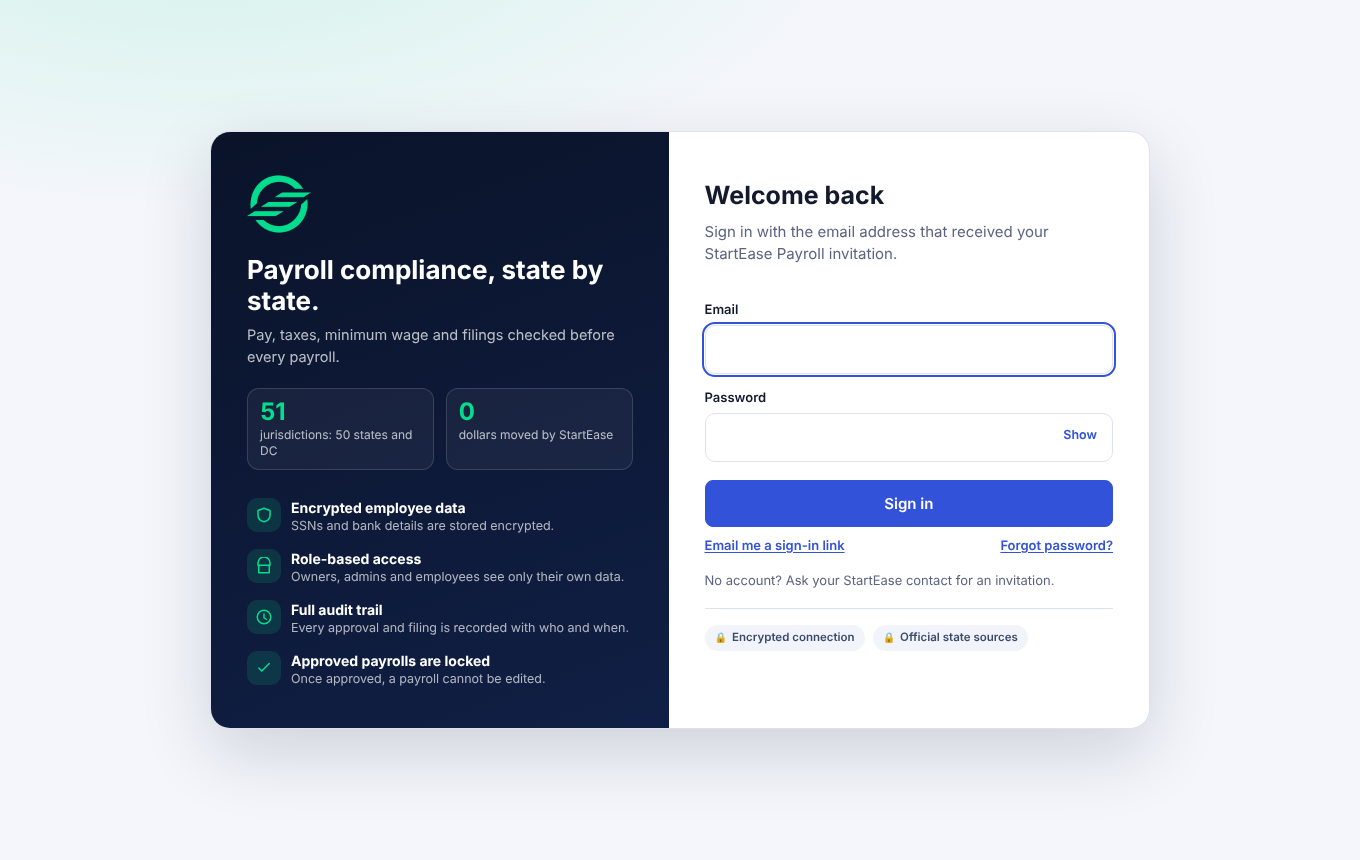
There is no "Sign up" button. Accounts are created by invitation. If you do not have one, ask your StartEase payroll manager.
Tip. Let your browser save the password. Your email address is also remembered on this device.
First time: accept your invitation
What the email looks like and what to do if it does not arrive: Your invitation email.
- Open the invitation email and select the link.
- Choose a password of at least 12 characters and type it twice.
- Select Set password and continue.
If the link has expired, ask your payroll manager to send a new invitation.
Forgot your password
- Type your email address in the Email box.
- Select Forgot password?
- Open the email, select the link, and set a new password of at least 12 characters.
You can also select Email me a sign-in link to sign in without a password. If no email arrives, check spam. The email only goes to addresses that have an invited account.
"Your session ended. Please sign in again."
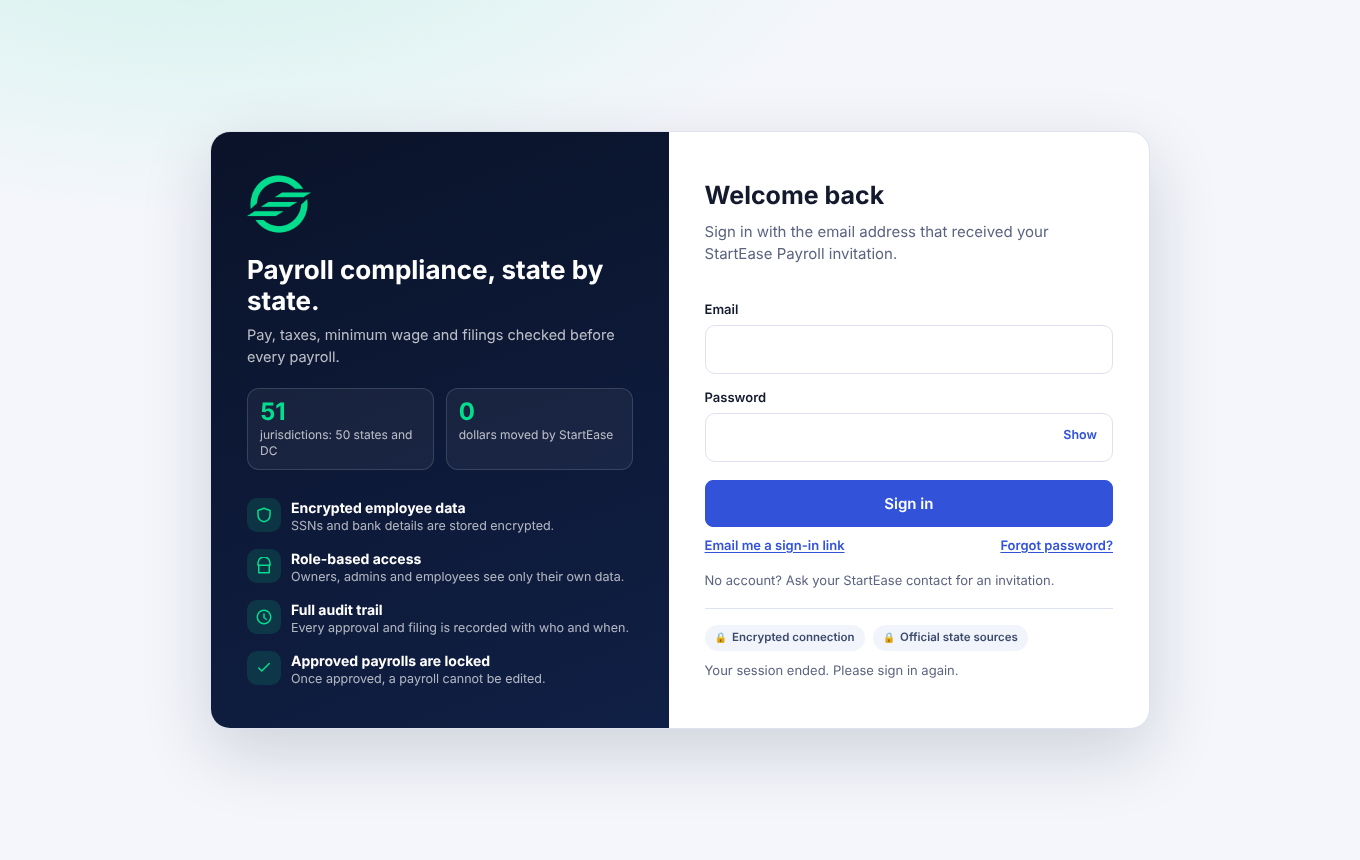
Switching to another browser tab, or coming back to the tab later, does not sign you out. If you see this message, sign in again. Anything you had already saved is still there.
If sign-in does not work
| You see | What it means |
|---|---|
| Invalid login credentials | The email or password is wrong. Retype the password with Show on, or use Forgot password? |
| Enter your email address / Enter your password | A box is empty. |
| Sign-in could not load | Your network blocked the sign-in service. Check your connection and reload. |
Next: What you can see and do