 StartEase
Help / Getting started
Your invitation email: what it looks like and what to do
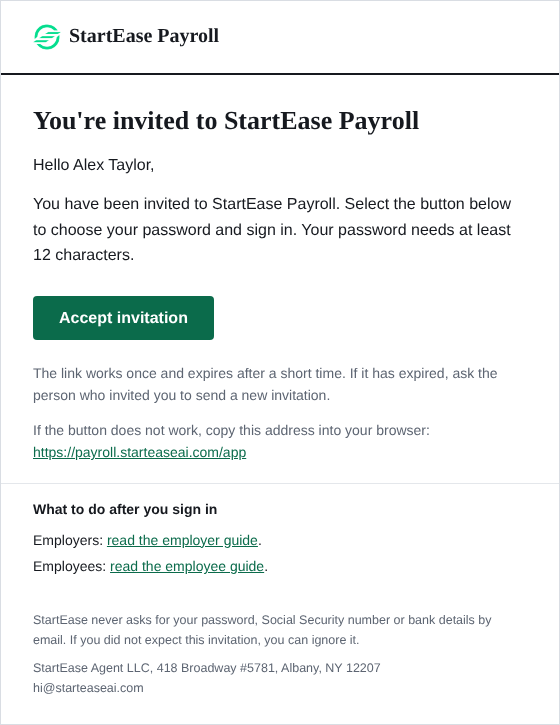
Every person gets into StartEase Payroll through an email invitation. Here is what it looks like, how to accept it, and what to do if it does not arrive or the link has expired.
There is no “Sign up” button. Your employer or your StartEase payroll team invites you, and you get one email.
What the email looks like
Accept the invitation
- Open the email and select Accept invitation. If the button does not work, copy the address shown under it into your browser.
- Choose a password of at least 12 characters and type it twice.
- You are signed in. Next time, sign in at payroll.starteaseai.com/app with your email and password.
What to do next depends on your role: Employer guide or Employee guide.
If something is wrong
| Problem | What to do |
|---|---|
| The email did not arrive | Look in spam, junk and promotions for a message from StartEase Payroll. Then ask the person who invited you to check that your email address was typed correctly. |
| The link has expired or was already used | Ask the person who invited you to send a new invitation. Employers: ask your StartEase payroll team. Employees: ask your employer. |
| You already have an account | Do not accept again. Sign in, or use Forgot password? on the sign-in page (Sign in, reset your password, and stay signed in). |
| You were not expecting it | Ignore the email and do not select the link. |
Tip. StartEase never asks for your password, Social Security number or bank details by email, and the invitation contains no pay amounts.