 StartEase
Help / Employers
Approve a payroll and mark people paid
What to check, how to approve or send a payroll back, and what to do after you approve.
Your StartEase payroll team prepares the payroll and sends it to you. Nothing is final until you approve it.
1. Open the payroll
When a payroll is waiting, your dashboard shows Waiting for your approval with an Approve payroll button. You can also open Approve payroll in the menu.
2. Check it
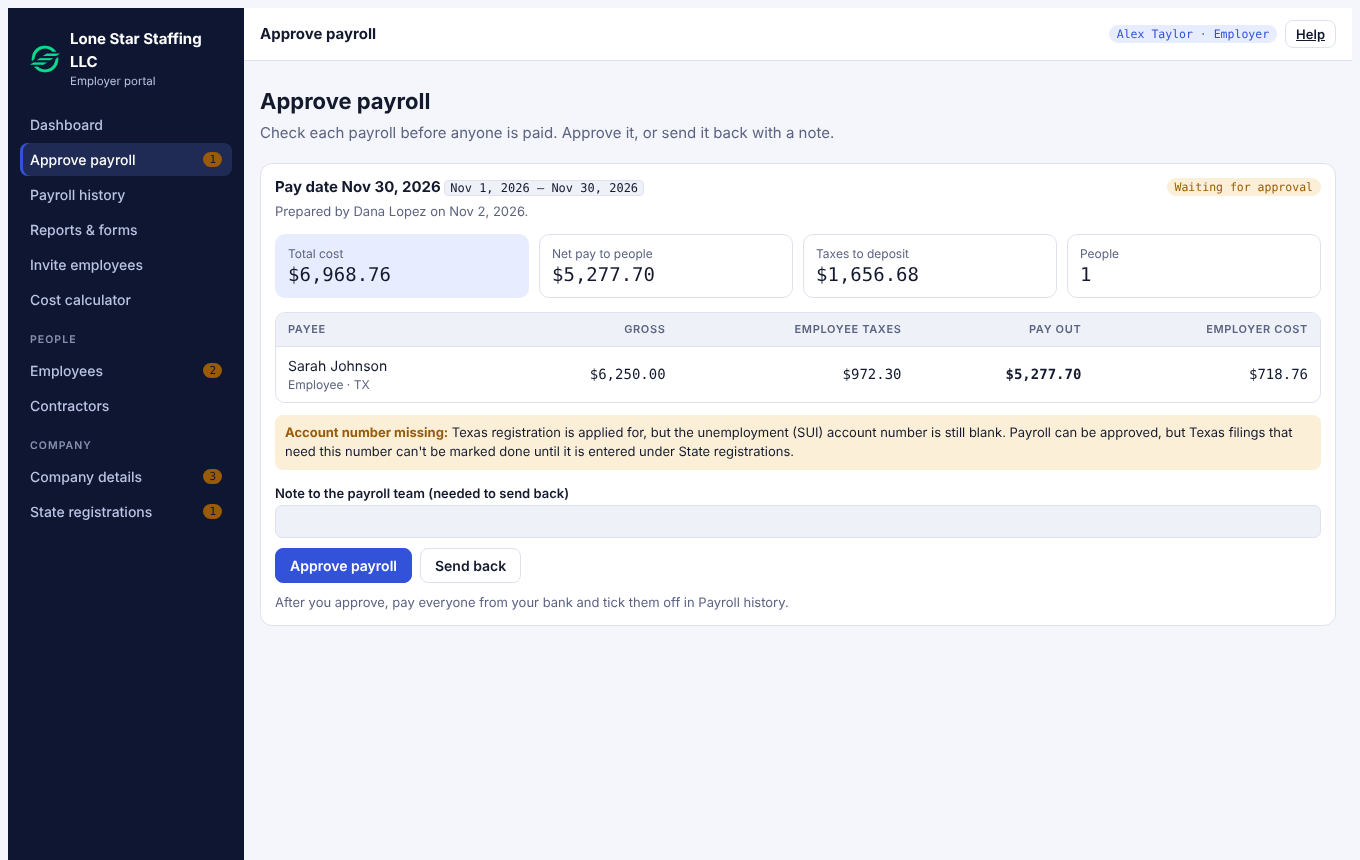
| Item | Meaning |
|---|---|
| Total cost | What the payroll costs the company: pay plus employer taxes. |
| Net pay to people | What employees receive after tax. |
| Taxes to deposit | Taxes you pay to the government for this payroll. |
| Gross, Employee taxes, Pay out, Employer cost | The same figures for each person. |
Yellow notes are reminders (for example a missing account number). They do not stop you.
3. Approve or send back
- Approve payroll: locks the payroll. It cannot be edited afterwards.
- Send back: write a note to the payroll team (the note is required). They correct it and send it again.
If a red dialog appears instead, see Why can't I approve my payroll?
4. Pay your people, then mark them paid
StartEase does not pay your employees or contractors. After you approve, pay everyone from your own bank, then open Payroll history.
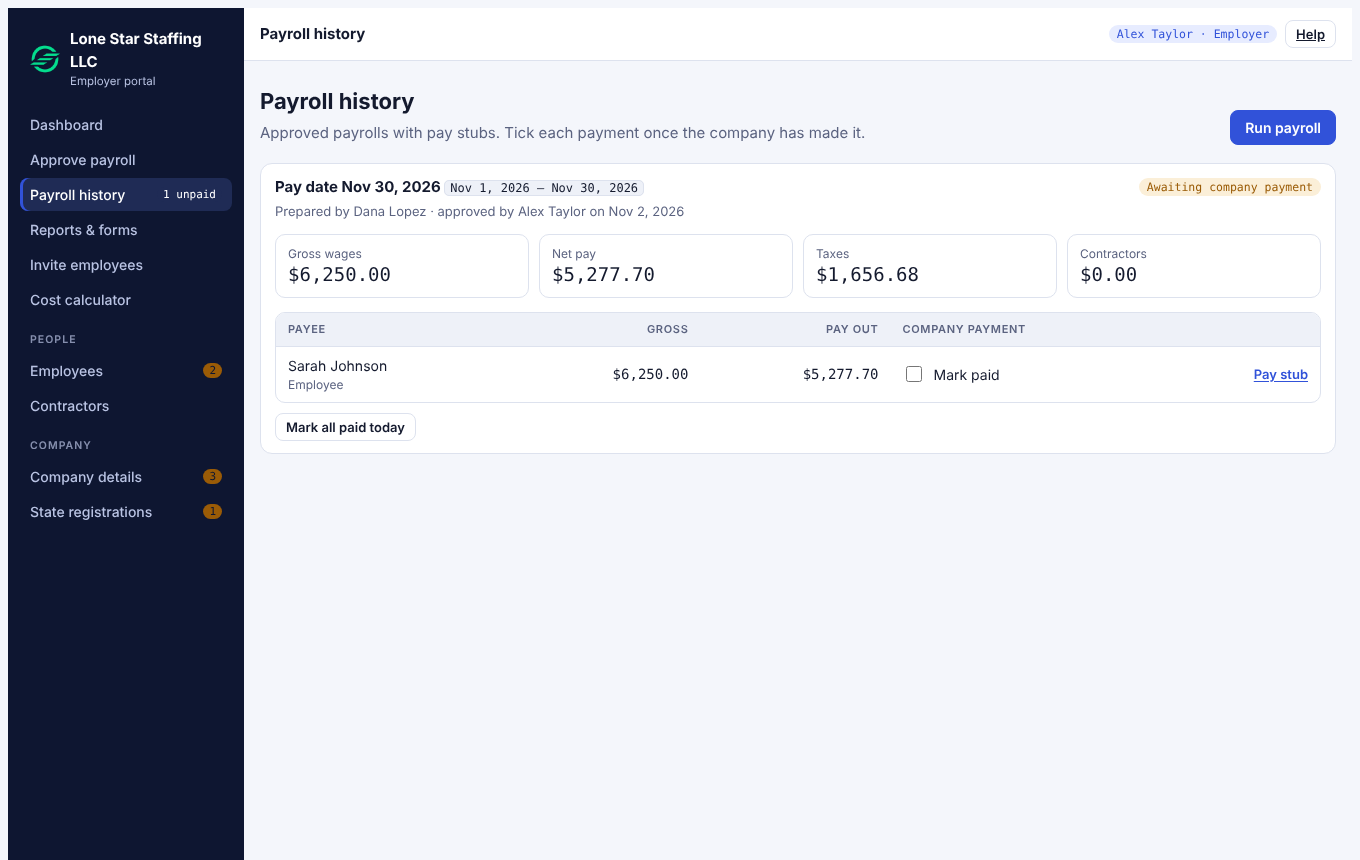
Each person has a Pay stub link. The status reads Awaiting company payment until everyone is marked paid.
Tip. Approve only after you have looked at the totals. After approval the payroll is locked; mistakes are corrected by the payroll team in a later payroll.