 StartEase
Time-off policy settings explained: every block, box and dropdown
A plain-words guide to the StartEase time-off policy editor: what each block, box and dropdown choice means, with a screenshot of every block, so you can set up PTO, sick leave or any leave policy with confidence.
What is a time-off policy?
A time-off policy is your company's rule for one kind of leave: its name, whether it is paid, how the balance grows, the limits, and who it covers. In StartEase you set one up under Time › Time off, in the Policies card. Each block of the editor has a How to fill this in link back to the matching part of this page.
Add a policy: the kinds of leave
- Open Time › Time off and scroll to Policies.
- Under Add a policy, choose a kind of leave from the dropdown.
- Select Add policy. The editor opens with the policy turned off.
- Fill in each block below, then select Turn on this policy.
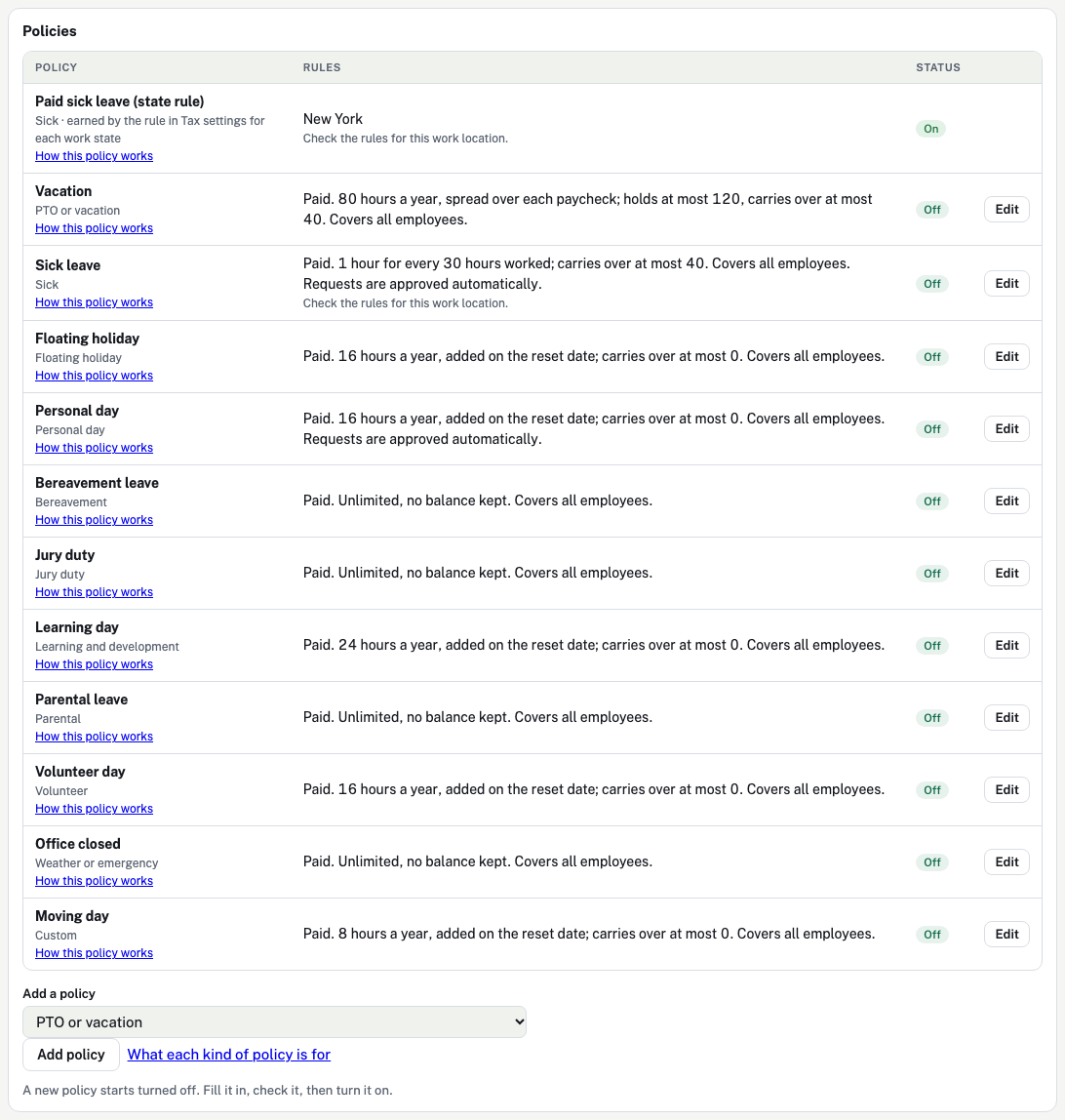
The table lists each policy's Rules in one line and its Status: On (employees can use it), Off (hidden from employees) or Not confirmed (a sick policy waiting for a payroll admin). Two rows can appear by themselves: PTO, when PTO is set up under Company details, and Paid sick leave (state rule), when an employee works in a state whose paid sick leave rule StartEase tracks. These are kept by payroll, so they have no Edit button.
Each kind has its own guide, with what it is, why companies offer it, what the law says and a worked example:
| Kind of leave | What it is for | Full guide |
|---|---|---|
| PTO or vacation | Rest and holidays the employee chooses. | PTO or vacation policy |
| Sick | Illness or care. Needs a payroll admin to confirm it before anyone can use it. | Sick policy |
| Floating holiday | A holiday the employee picks. | Floating holiday policy |
| Personal day | A day for anything personal, no reason needed. | Personal day policy |
| Bereavement | Time after a family member dies. | Bereavement policy |
| Jury duty | Time on jury service. | Jury duty policy |
| Learning and development | Time for a course, exam or training. | Learning and development policy |
| Parental | Time after a birth, adoption or foster placement. | Parental policy |
| Volunteer | Time to help a charity or the community. | Volunteer policy |
| Weather or emergency | When the workplace closes. | Weather or emergency policy |
| Custom | Anything else, with your own name. | Custom policy |
Basics
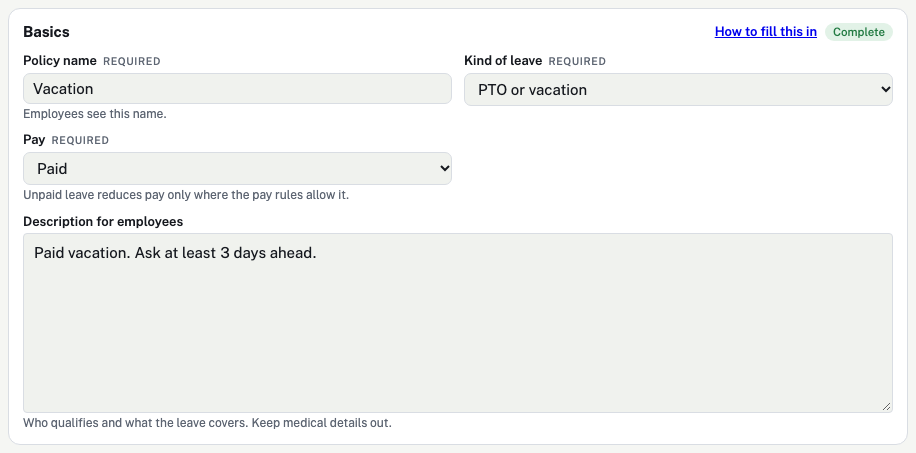
The name, the kind of leave, whether it is paid, and what employees read about it.
| Box | What it means and every choice |
|---|---|
| Policy name | The name employees see when they ask for time off and on their balances. Required. |
| Kind of leave | What the leave is for. It picks the help link and the extra checks. It does not change how the balance is counted. Required.
|
| Pay | Whether the hours are paid. Required.
|
| Description for employees | Up to 600 characters on My time off: who qualifies and what the leave covers. Keep medical details out. |
Earning
How the balance grows. Nothing is earned until a payroll is approved.

| Box | What it means and every choice |
|---|---|
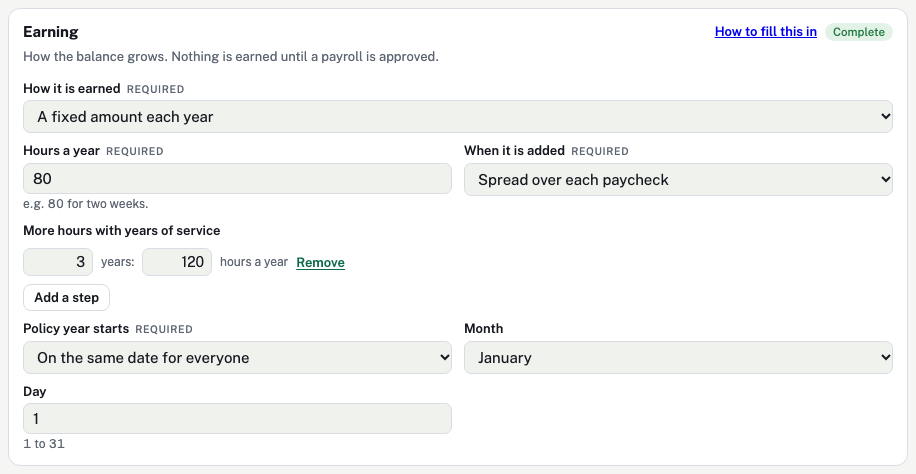
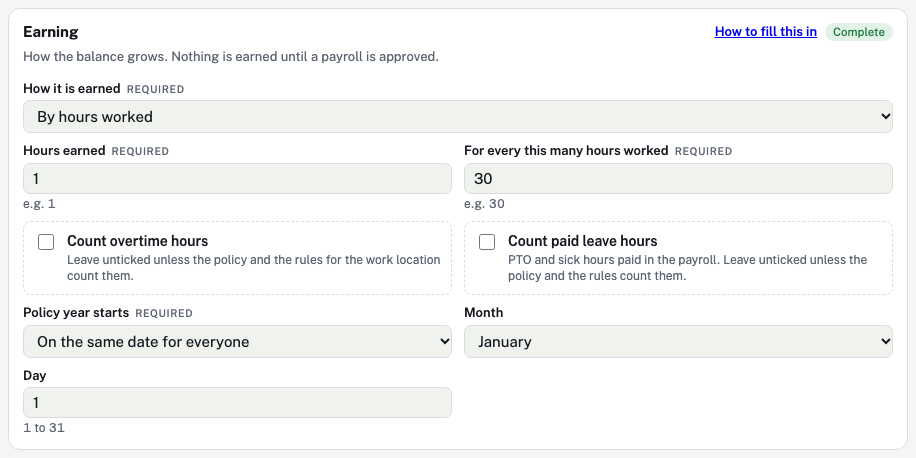
| How it is earned | How the balance grows. Required.
|
| Hours earned | Only for "By hours worked". The hours of leave earned, for example 1. |
| For every this many hours worked | Only for "By hours worked". For example 30: 1 hour of leave for every 30 hours worked. |
| Count overtime hours | Only for "By hours worked". Ticked: overtime hours also earn leave. Unticked: only regular hours do. |
| Count paid leave hours | Only for "By hours worked". Ticked: paid PTO and sick hours in the payroll also earn leave. |
| Hours a year | Only for "A fixed amount each year". For example 80 for two weeks. |
| When it is added | Only for "A fixed amount each year".
|
| More hours with years of service | Only for "A fixed amount each year". Select Add a step, then type the years and the new hours a year, for example 3 years: 120 hours a year. Remove deletes a step. |
| Policy year starts | When caps and carryover are counted again. Not shown for unlimited policies.
|
| Month | Only for "On the same date for everyone". January to December. |
| Day | Only for "On the same date for everyone". 1 to 31. A day past the end of the month uses the last day. |
Rules
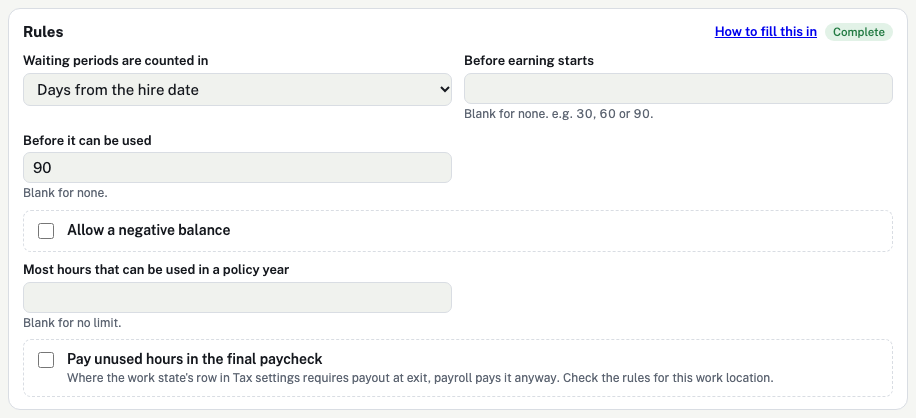
Waiting periods, negative balances, a yearly use limit and payout at exit.
| Box | What it means and every choice |
|---|---|
| Waiting periods are counted in | The unit for the two waiting periods below.
|
| Before earning starts | Not shown for unlimited policies. Nothing is earned before this. Blank for none. |
| Before it can be used | Leave can be earned but not taken before this. Blank for none. |
| Allow a negative balance | Not shown for unlimited policies. Ticked: an employee may borrow ahead of what they have earned. |
| Lowest balance allowed (hours below zero) | Only when a negative balance is allowed. For example 16 lets the balance go down to −16. |
| Most hours that can be used in a policy year | A yearly limit on hours taken. Blank for no limit. |
| Pay unused hours in the final paycheck | Not shown for unlimited policies. Ticked: unused hours are paid when someone leaves. Where the work state's rule requires payout, payroll pays it whatever you choose. |
Caps
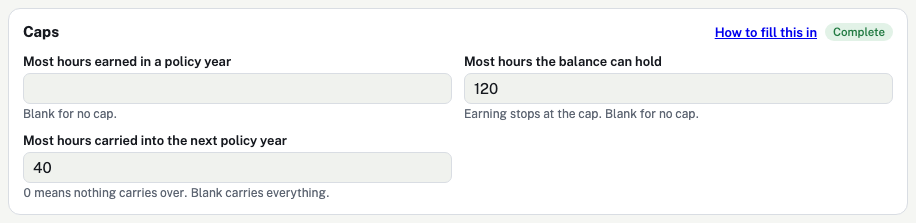
Limits on the balance. Not shown for unlimited policies.
| Box | What it means and every choice |
|---|---|
| Most hours earned in a policy year | Earning stops for the year at this number. Blank for no cap. |
| Most hours the balance can hold | Earning pauses while the balance is at the cap and starts again when leave is used. Blank for no cap. |
| Most hours carried into the next policy year | Hours above this are dropped when a new policy year starts. 0 means nothing carries over. Blank carries everything. |
Requests
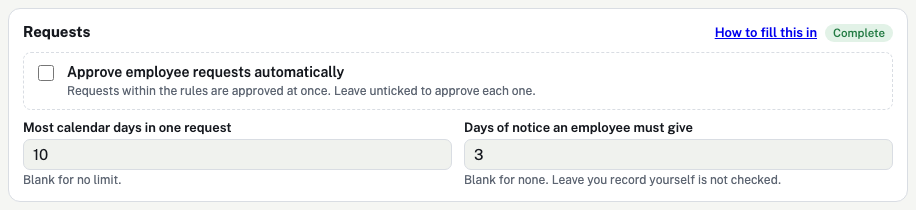
How employee requests are handled.
| Box | What it means and every choice |
|---|---|
| Approve employee requests automatically | Ticked: a request that follows the rules is approved at once. Unticked: the Employer or payroll team approves each one. |
| Most calendar days in one request | For example 10. Blank for no limit. |
| Days of notice an employee must give | For example 3 means the first day must be at least 3 days away. Leave you record yourself is not checked. Blank for none. |
Employees
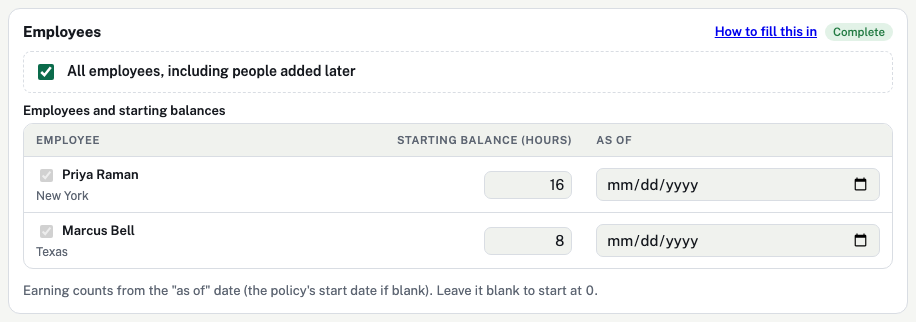
Who the policy covers and where each balance starts.
| Box | What it means and every choice |
|---|---|
| All employees, including people added later | Ticked: everyone is covered, now and later. Unticked: tick each employee in the table. |
| Starting balance (hours) | Hours the employee already has, for example from your old system. Blank starts at 0. |
| As of | The date that starting balance is correct. Earning counts from this date, or from the policy's start date if blank. |
Review and turn on
The last check before employees can use the policy.

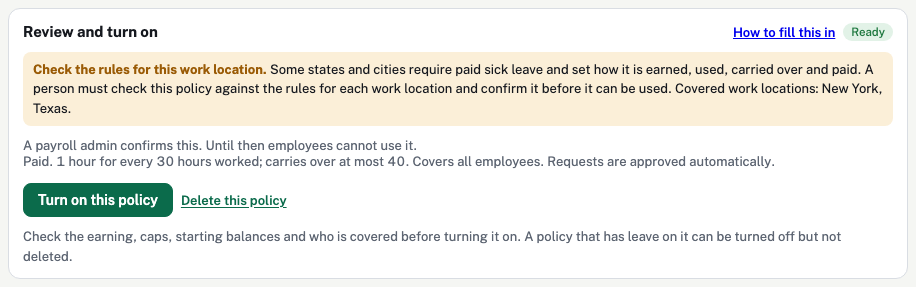
| Box | What it means and every choice |
|---|---|
| Ready, or "N to finish" | Ready means every required box is filled. "2 to finish" means two boxes marked Required are empty. |
| Check the rules for this work location | Shown for sick, jury duty, parental, weather and custom policies. Local law can set rules for these. |
| I checked this policy against the rules for these work locations | Sick policies only, payroll team only. Records who checked it and when. Until then employees cannot use it. Changing a rule clears it. |
| The summary sentence | The policy in one line, for example "Paid. 80 hours a year, spread over each paycheck". Read it before you turn the policy on. |
| Turn on this policy / Turn off | Turns the policy on for the employees covered, or off. A new policy starts turned off. |
| Delete this policy | Only while no leave has been recorded on it. After that you can turn it off but not delete it. |