 StartEase
Step by step: log hours, ask for time off, and approve
With pictures: how an employee asks for time off and fills in a timesheet, and how the Employer approves both.
The pictures use sample data: an employee, Priya Raman, and her Employer, Rohan Kapoor.
Part 1. The employee asks for time off
- Sign in and open My time off.
- Look at Balances. Available is how many hours you can still use.
- Under Request time off, choose the Policy, the First day and the Last day.
- Under Hours, choose full days, or fewer hours for a part day.
- Add a short note if you want. Do not include medical details.
- Check the line under the note: it shows your balance and what is left after this request.
- Select Request. Some policies are approved automatically; the button says so.
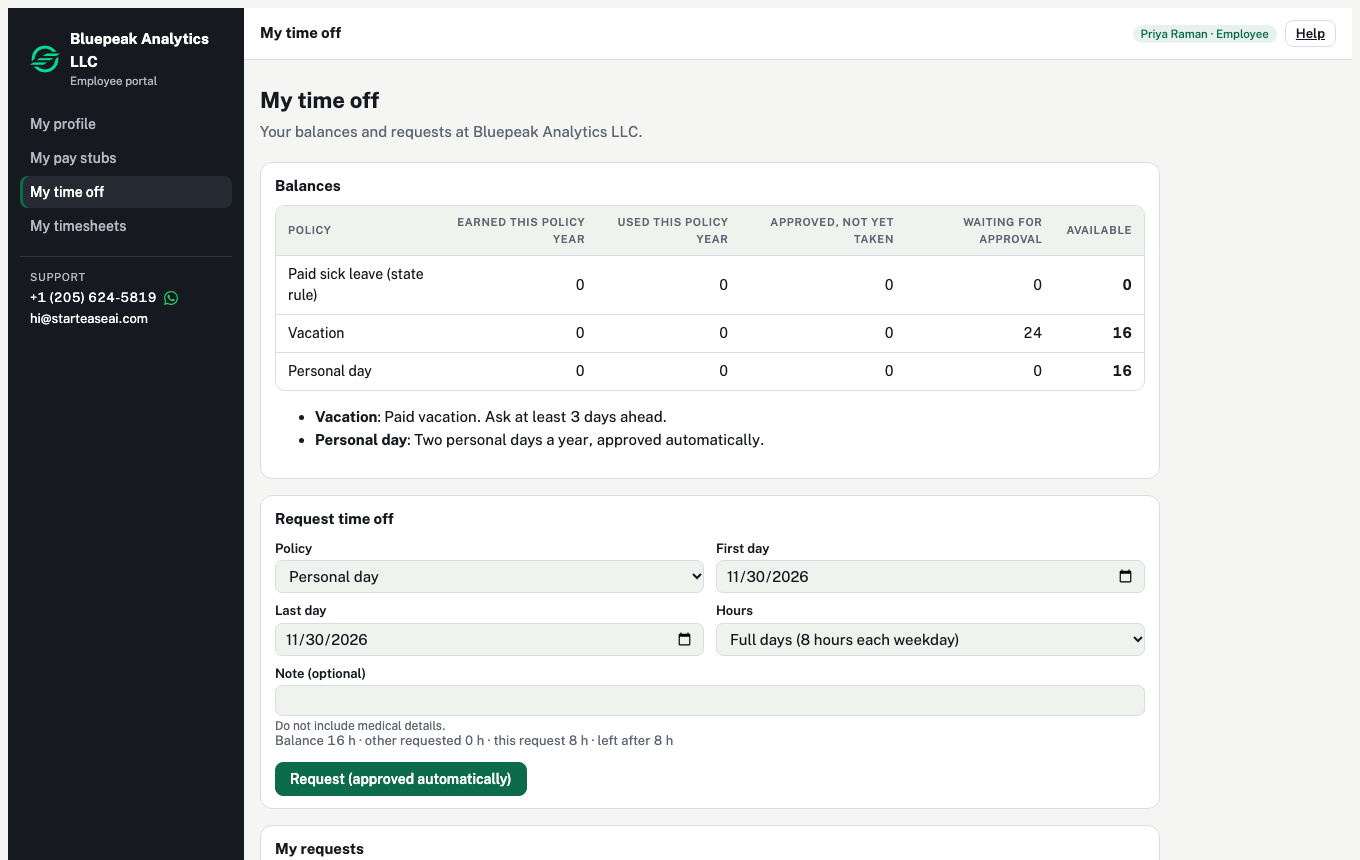
Your request shows under My requests. While it is waiting, you can cancel it.
Part 2. The employee fills in a timesheet
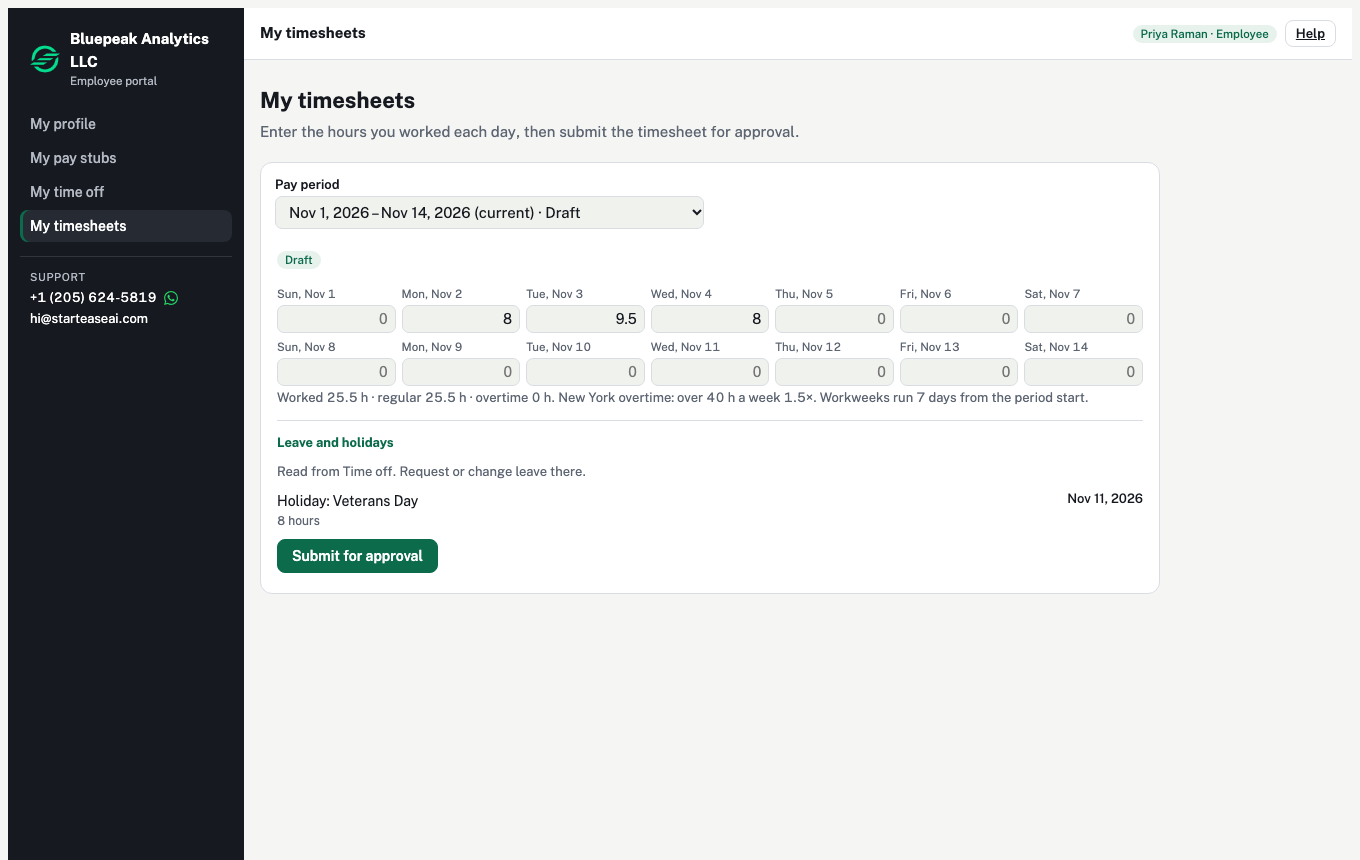
- Open My timesheets.
- Choose the Pay period. The current one is picked for you.
- Type the hours you worked in each day's box, for example
8or7.5. Leave days you did not work at 0. - Check the line under the grid: total hours, regular hours and overtime.
- Look at Leave and holidays. Approved time off and company holidays are already there. You do not type them.
- Select Submit for approval.
Part 3. The Employer approves time off
- Open Time › Time off.
- Requests waiting for you are at the top, under Waiting for approval.
- Check the dates and hours, then select Approve or Decline.
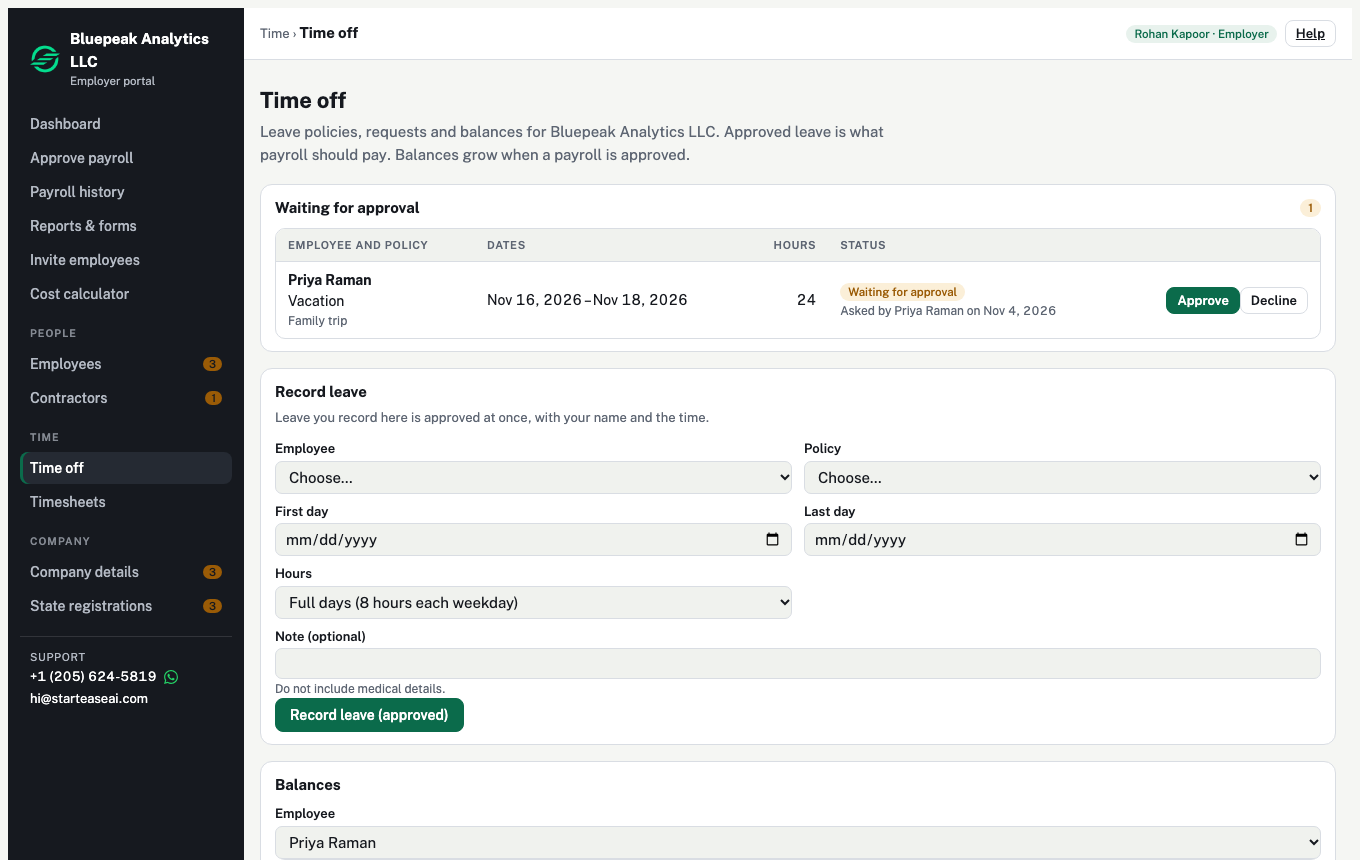
If an employee forgot to ask, use Record leave on the same page. It is approved at once, with your name and the time. See How to record time off for an employee.
Part 4. The Employer approves a timesheet
- Open Time › Timesheets and choose the Pay period.
- The table lists every employee with hours worked, leave, holidays and status. Submitted means waiting for you.
- Select Open on a row to see the days.
- If it is right, select Approve.
- If not, type a note and select Send back. The note is needed to send it back.
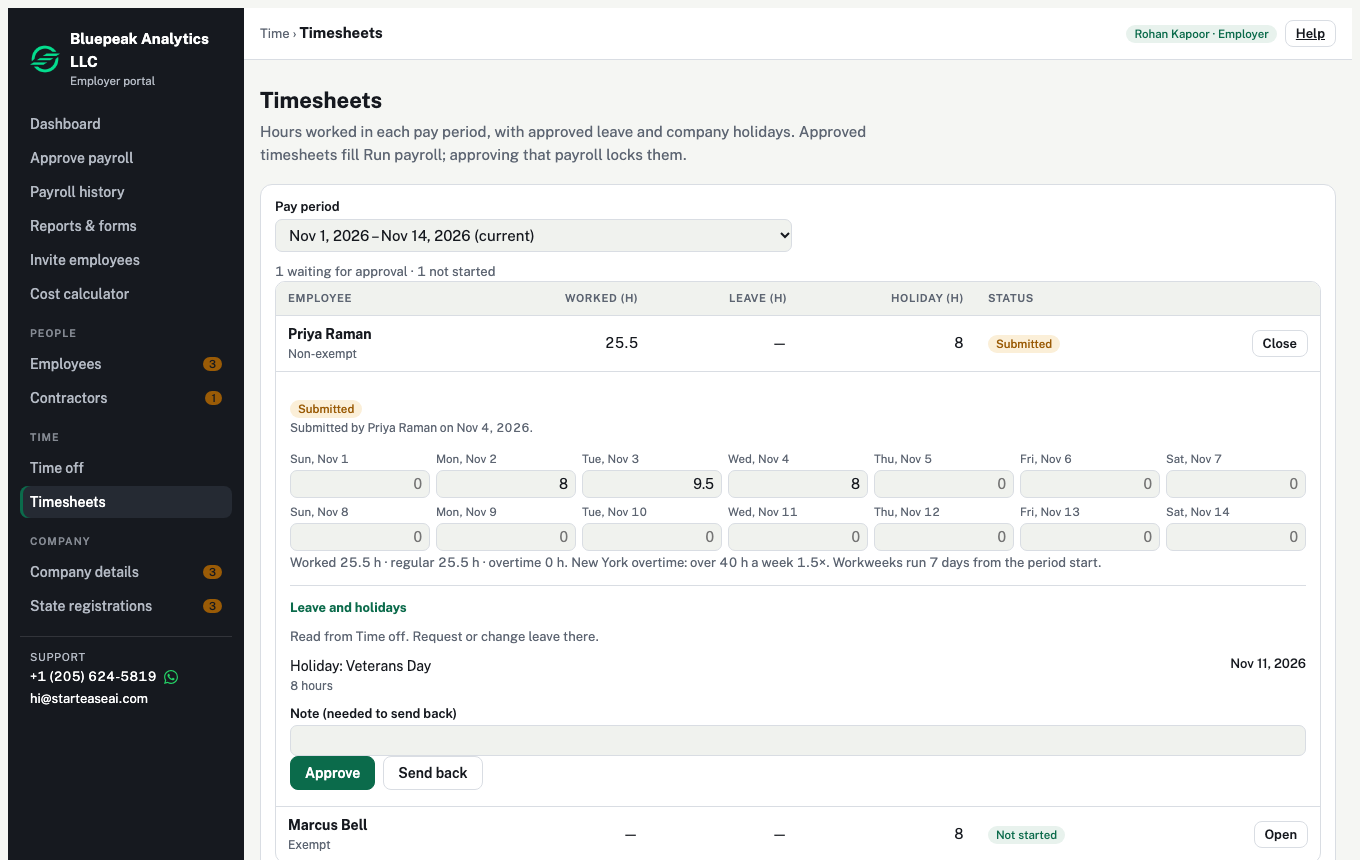
You cannot change an employee's hours yourself. Send it back so they can fix it, or ask your payroll team.
Part 5. What happens next
Your payroll team fills the payroll from approved timesheets, checks it, and sends it to you to approve as usual (see Approve a payroll). When the payroll is approved, the timesheets are locked as Sent to payroll, leave is taken off balances, and new leave is earned.
More: The basics and Time off vs timesheets.