 StartEase
Timesheets in StartEase: set up the pay schedule, read the page, and approve hours
What the Timesheets page shows, why it is empty until the pay schedule is set, every pay schedule box under Company details, how pay periods are worked out, and how a timesheet goes from the employee to payroll.
What is the Timesheets page?
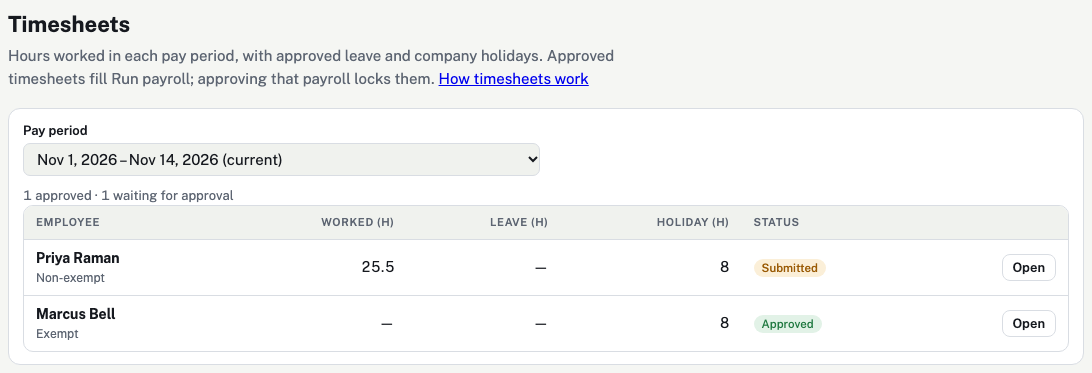
Time › Timesheets shows each employee's hours for one pay period. Each row adds up the hours worked, the approved leave and the company holidays. Here the Employer checks and approves timesheets before payroll. Approved timesheets fill Run payroll; when that payroll is approved, the timesheets are locked.
Not sure how timesheets differ from time off? Read Time off vs timesheets.
Why does Timesheets say "Set this pay schedule's frequency and first period end"?

A timesheet covers one pay period. StartEase works out the pay periods from two answers on Company details: Pay frequency and First pay period ends. Until both are filled in, there are no pay periods, so the page shows only this message and a How to set up the pay schedule link to the part below. Employees see a similar message (see What employees see).
How to set up the pay schedule
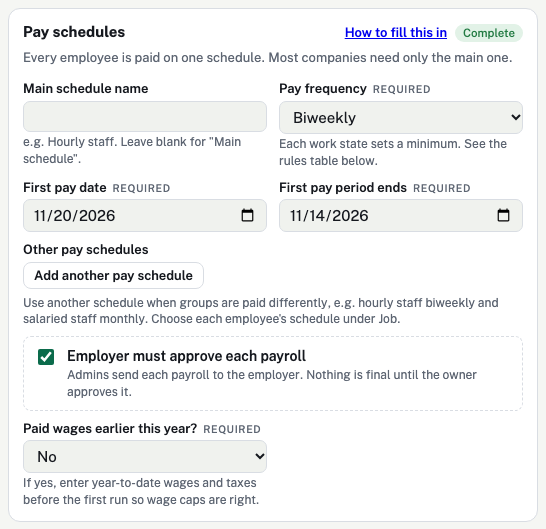
Open Company details and find the Pay schedules card. Its How to fill this in link opens this part.
| Box | What it means |
|---|---|
| Main schedule name | A name for the schedule, for example "Hourly staff". Blank shows "Main schedule". Only you and the payroll team see it. |
| Pay frequency (required) | How often employees are paid. Each choice sets how long a pay period is.
|
| First pay date (required) | The day employees are first paid on this schedule. StartEase keeps the same gap between the period end and the pay date for later payrolls. With the period ending Nov 14 and pay on Nov 20, each later payroll is paid 6 days after its period ends. |
| First pay period ends (required) | The last day of the first pay period. Every later period is worked out from this date and the frequency. Timesheets start with this period. |
| Other pay schedules | For groups paid differently, for example hourly staff every two weeks and salaried staff monthly. Add another pay schedule adds a line with its own Schedule name, Pay frequency, First pay period ends and First pay date, the number of employees on it, and Remove. Choose each employee's schedule in their profile under Job › Pay schedule. |
| Employer must approve each payroll | Ticked: the payroll team sends each payroll to the Employer, and nothing is final until the Employer approves it. This is about payrolls, not timesheets. |
| Paid wages earlier this year? | Whether the company paid wages this year before using StartEase.
|
Under the card, Pay frequency rules for your work states shows the pay frequency rule for each state your employees work in, and flags an employee whose schedule may not meet it. Check your state's labor department for the full rule.
How StartEase works out the pay periods
StartEase takes the First pay period ends date, works back to the start of that period, then steps forward one period at a time. With the first period ending on November 14, 2026:
| Pay frequency | Each period | First period | Next period |
|---|---|---|---|
| Weekly | 7 days, ending on the day you choose. | Nov 8 – Nov 14 | Nov 15 – Nov 21 |
| Biweekly | 14 days, ending on the day you choose. | Nov 1 – Nov 14 | Nov 15 – Nov 28 |
| Semimonthly | The 1st to the 15th, then the 16th to the last day of the month. Choose the 15th or the last day of a month. | Nov 1 – Nov 15 | Nov 16 – Nov 30 |
| Monthly | The 1st to the last day of the month. Choose the last day of a month. | Nov 1 – Nov 30 | Dec 1 – Dec 31 |
For semimonthly and monthly pay, the example uses November 15 and November 30, because those periods always end on the 15th or the last day of the month.
The pay period and the summary
- Pay schedule: shown only when the company has more than one schedule. Pick which schedule's timesheets to see.
- Pay period: the next pay period and up to seven before it, newest first. The period that includes today is marked (current) and is chosen when you open the page; a future one is marked (next).
- The summary line: how many timesheets in the period are approved, sent to payroll, waiting for approval, in draft, and not started. For example, "1 approved · 1 waiting for approval".
Only employees on the chosen schedule and employed during the period are listed. Someone hired after the period ends, or who left before it starts, is not shown.
Each column of the table
| Column | What it shows |
|---|---|
| Employee | The name, and Exempt or Non-exempt from the employee's profile. |
| Worked (h) | Hours the employee entered for the period. Exempt employees show "—": they do not enter hours. |
| Leave (h) | Approved time off in the period, read from Time off. |
| Holiday (h) | Company holiday hours in the period, for employees who get holiday pay. |
| Status | Not started, Draft, Submitted, Approved or Sent to payroll (see below). |
| Open / Close | Opens the full timesheet under the row. |
An open timesheet
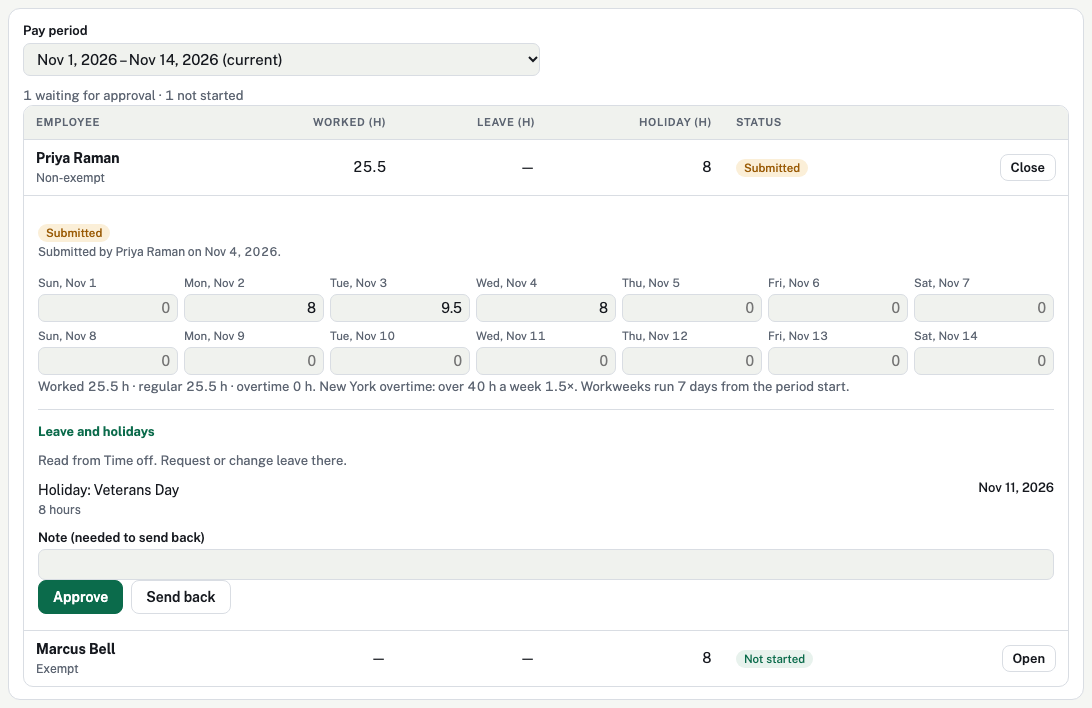
- Status and history: who submitted and approved it, and when.
- One box for each day of the period (non-exempt employees only). Hours from 0 to 24, like 7.5.
- The totals line: hours worked, split into regular and overtime by the overtime rule of the employee's work state, which the line names. Workweeks run 7 days from the period start.
- Leave and holidays: approved leave and company holidays in the period, filled in by themselves. To change leave, change it on Time off.
- Note: needed to send a timesheet back, so the employee knows what to fix.
- Approve and Send back: shown to the Employer when the timesheet is submitted.
The timesheet statuses
| Status | What it means |
|---|---|
| Not started | The employee has not entered any hours for the period yet. |
| Draft | Being filled in, or sent back to be fixed. |
| Submitted | The employee submitted it. Waiting for approval. |
| Approved | Ready for payroll. The payroll team can reopen it if needed. |
| Sent to payroll | Used in an approved payroll. Locked: corrections go in the next payroll. |
How a timesheet reaches payroll
- The employee fills it in. On My timesheets they type the hours for each day and press Submit for approval. Approved leave and holidays are already there.
- The Employer approves it. On Timesheets, open the row and press Approve. If something is wrong, write a note and press Send back; the employee fixes it and submits again.
- Payroll is filled from it. On Run payroll, the payroll team sees how many timesheets are approved for the period and presses Fill … from approved timesheets. The hours, leave and holiday hours go into the payroll, and can still be checked before it is approved.
- The payroll is approved, and the timesheet is locked. It shows Sent to payroll and can no longer be changed. A late correction goes in the next payroll.
Who can do what
- Employee enters hours and submits their own timesheet while it is a draft.
- Employer approves a submitted timesheet or sends it back with a note. The Employer does not change an employee's hours.
- Payroll team can also enter hours, approve, reopen an approved timesheet, and fill payroll from approved timesheets.
What employees see
Employees use My timesheets. Until the pay schedule is set up, they see a short message instead of a timesheet:

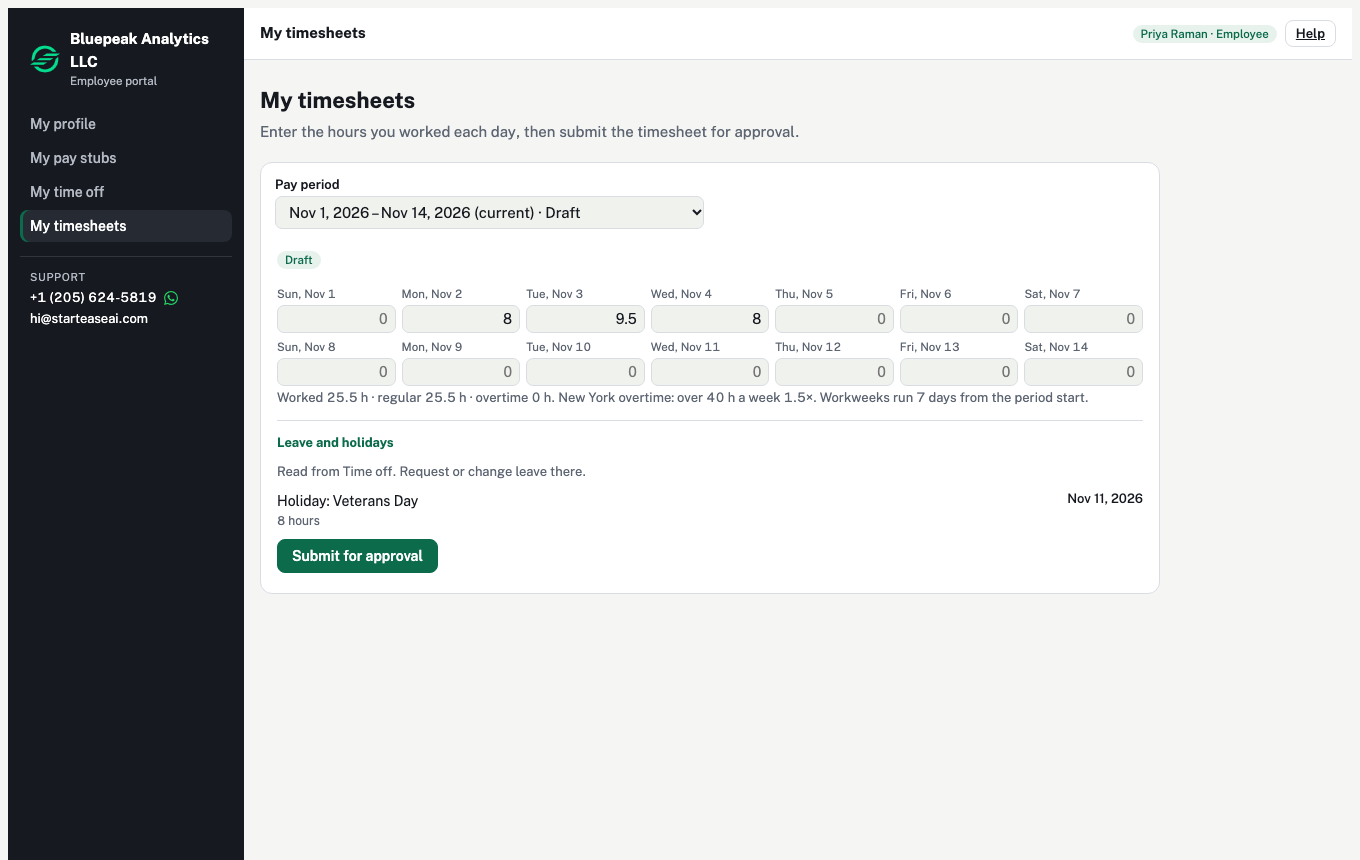
Once it is set up, they see one box for each day of the pay period, their leave and holidays, and Submit for approval. They can pick an earlier period to see its status.
Common questions
Why is an employee missing from the list?
They are on another pay schedule, or were not employed during the period (hired after it ended, or left before it started). Check Job › Pay schedule, the hire date and the last day in their profile.
Why can't I see an older pay period?
The list shows the next period and up to seven before it. Periods before the First pay period ends date do not exist in StartEase.
Do salaried employees need timesheets?
Exempt employees do not enter hours. Their timesheet shows only leave and holidays, so the Employer can still see time away in each period.
Can I change hours after the payroll is approved?
No. The timesheet is locked. Correct the hours in the next payroll.
What if I change the pay schedule later?
The pay periods are worked out again from the new answers. Ask your payroll team first if payrolls have already been run, so periods and pay dates stay in line.
More: How to record time off for an employee and Company holidays.