 StartEase
Help / Accounting firms
Firm owner: invite your staff and the Employer, and choose who works on each company
The Team page shows your firm's people, the companies each one works on, and the Employer who approves payroll at each company.
Invite someone
- Open Team and go to Invite someone.
- Enter their full name and work email.
- Under Invite as, choose Firm staff: runs payroll or Employer: approves their company's payroll.
- Under Company, choose the company. It is required for an Employer. For staff you can choose later.
- Choose Send invitation. They get an email invitation and set their own password.
Each company needs an Employer before its payroll can be approved. Until one is invited, the Companies page shows Employer: not invited yet.
Choose who works on each company
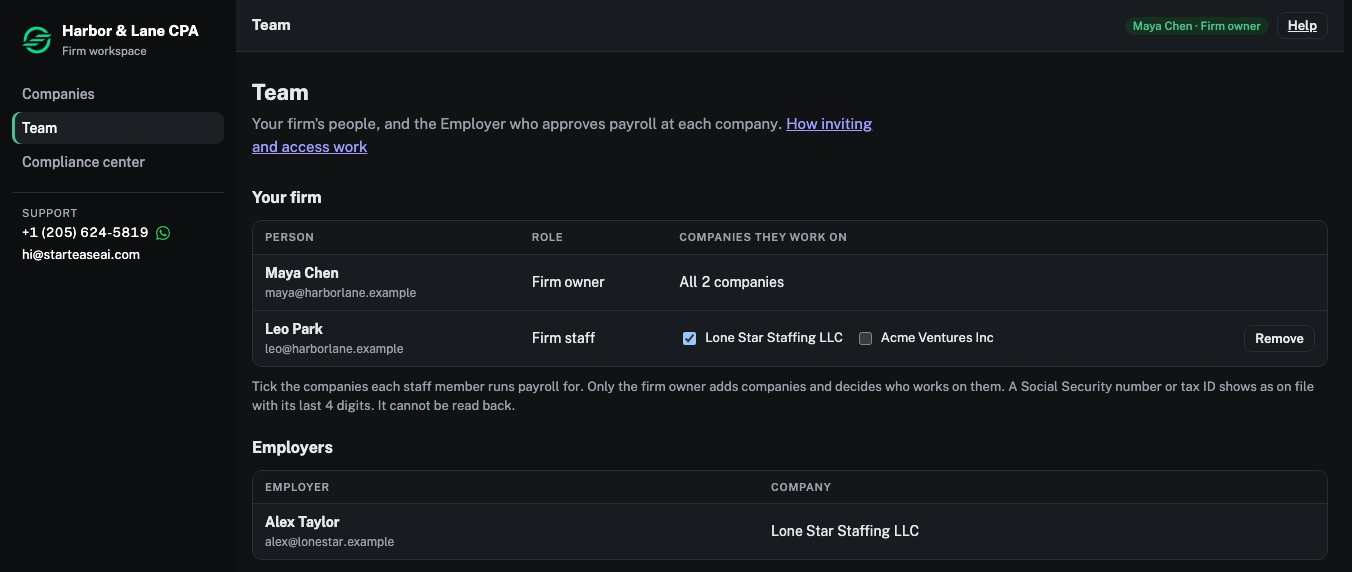
Under Your firm, tick the companies each staff member runs payroll for. Untick a company to take their access away. The change takes effect straight away. The firm owner always works on every company.
Remove someone from the firm
- Choose Remove next to the person.
- Choose Confirm: remove to finish, or Keep to cancel.
They lose access to all of the firm's companies. Their past work stays in each company's records.
Employers
The Employers table lists each Employer and their company. The Employer approves or sends back each payroll your firm prepares. See Approve a payroll and mark people paid.
Next: How firm access works