 StartEase
Help / Accounting firms
Firm owner: add a client company and see every company at a glance
The Companies page lists every client company in your firm, with setup progress, who works on it, the next pay date and anything due.
Add a client company
- Open Companies and choose Add a client company.
- Enter the company's legal name. Add only companies your firm runs payroll for. Your own firm is not added as a company.
- Choose Add and set up company.
- Fill in the company's details, states, employees and contractors. The Employer guide explains each setup step.
Read the list
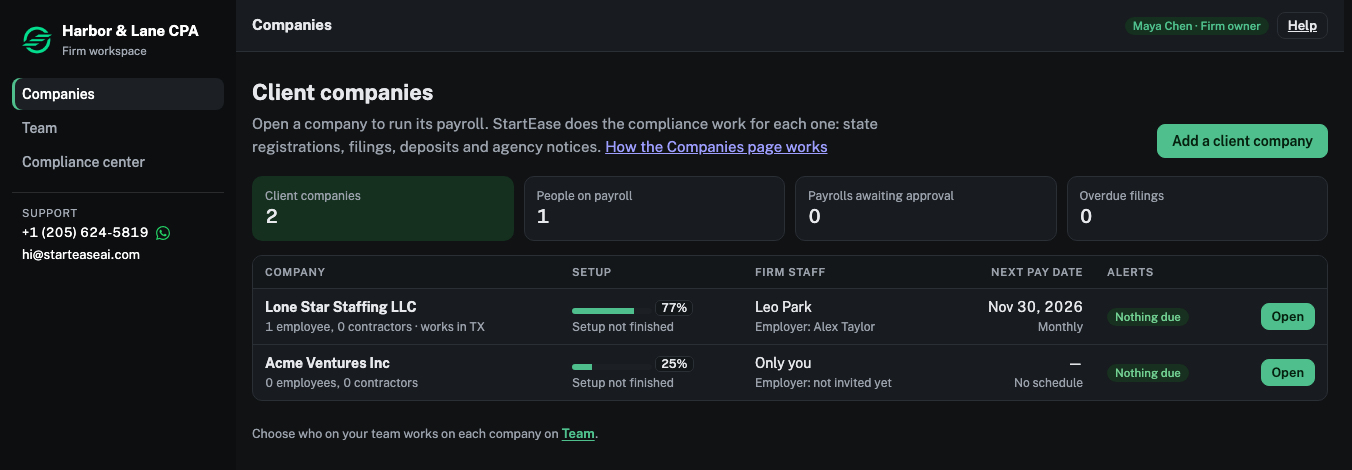
- Company: the number of employees and contractors, and the states they work in.
- Setup: how much of the setup is done. Setup not finished means the company cannot run payroll yet.
- Firm staff: who works on the company (Only you when nobody else does), and the company's Employer, or not invited yet.
- Next pay date: from the company's pay schedule.
- Alerts: payrolls awaiting approval, filings overdue or due soon, or Nothing due.
The boxes at the top add these up across all your companies. Choose Open to work inside a company.
Compliance center
The firm owner's Compliance center lists what is due across every company in the firm: deposits, filings, forms and setup items, with their status. Filter it by company, by type or by status.
Tip. Moving a company into or out of your firm, and deleting a company, is done by StartEase. Email us if you need either.